

GoHighLevel Twilio Integration: Setup, SMS Workflows & Compliance
You’re running a service business or agency with GoHighLevel. Email campaigns are working, but response rates are plateauing. SMS changes the game: 98% open rate vs. 20% for email (Twilio SMS Marketing Benchmark, 2024), replies within minutes vs. hours.
GoHighLevel has native SMS at $75/month (Pro plan, additional cost). Twilio offers SMS at $0.01–0.02 per message—typically $1–10/month for small businesses. The catch: you need to integrate them yourself via API.
This guide walks you through the complete integration: connecting Twilio to GoHighLevel, setting up bidirectional contact sync, building SMS automations, ensuring 10DLC compliance, and calculating ROI. By the end, you’ll have a working SMS workflow that costs 80% less than native GoHighLevel SMS and sends SMS replies directly into your CRM.
Key Takeaways
- Twilio + GoHighLevel integration takes 3–4 hours to set up and costs $1–10/month in SMS charges vs. $75/month for native GoHighLevel SMS. Both enable SMS automations; Twilio gives you finer control and lower costs (Twilio Pricing, 2026).
- Bidirectional sync ensures replies land automatically in GoHighLevel contacts as custom fields, triggering automations (e.g., “If SMS contains ‘YES’, tag contact as Interested”). This requires GoHighLevel’s API (Pro or Unlimited plan) and Zapier or custom webhooks.
- 10DLC (10-Digit Long Code) registration is mandatory for SMS compliance. US carriers require you to register your brand, use case, and monthly volume. Without it, Twilio blocks sends after 100 messages/day. Registration takes 1–3 days and is free (Twilio 10DLC docs, 2026).
- SMS automations in GoHighLevel trigger on contact actions (form submission, link click, tag added). Pair with Twilio API calls via Zapier to send SMS directly from workflows. ROI: typical small business sees 40–60% reply rate on SMS (vs. 2–5% email reply rate), enabling faster follow-up and 15–25% higher close rates (industry data, 2024–2026).
- Security: Store Twilio credentials in GoHighLevel’s API Key vault (never paste raw credentials in Zapier or automation steps). Rotate keys every 90 days. Restrict API permissions to SMS-only (no voice, no account modifications).
Why Add Twilio SMS to GoHighLevel?
Before the technical setup, understand the three reasons to integrate (and when to skip).
1. Cost Savings: $1–10/Month vs. $75/Month
GoHighLevel native SMS (included in Pro plan as add-on):
- Cost: $75/month (additional to your Pro/Unlimited plan)
- Unlimited SMS sends
- Native integration (one-click activation)
- Limited flexibility (uses GHL’s APIs, customization is constrained)
Twilio SMS:
- Cost: $0.01–0.02 per message
- 100 SMS/month = $1–2/month
- 500 SMS/month = $5–10/month
- 1,000+ SMS/month = $10–20/month
- Requires manual integration (3–4 hours setup)
- Full API flexibility (custom logic, advanced routing, webhook replies)
When Twilio makes sense:
- You send <500 SMS/month (save $60+/month)
- You need custom SMS logic (conditional sends, external API calls)
- You want SMS reply automation (Twilio webhooks → GoHighLevel)
When native GoHighLevel SMS makes sense:
- You send 5,000+ SMS/month (marginal cost approaches zero)
- You want one-click setup (no coding/Zapier)
- You don’t need reply automation
2. SMS Reply Automation (Twilio Webhooks)
GoHighLevel’s native SMS doesn’t auto-sync replies into the CRM. Twilio does via webhooks.
Scenario: You send SMS: “Did you like our service? Reply YES or NO.”
With native GHL SMS: Replies go to a Twilio inbox, you manually log in to check.
With Twilio + GoHighLevel integration: Replies land in GoHighLevel contact record as custom field, triggering an automation: “If SMS contains ‘YES’ → Tag as Interested → Send follow-up email.”
This cuts manual follow-up time 60–80%.
3. Multi-Channel Automation
Twilio integrates with email, push notifications, and voice calls. Build a unified workflow:
1. New contact form submission
2. Tag contact as "Hot Lead"
3. Send SMS: "Thanks for inquiry; call me at [phone]"
4. If no reply in 2 hours → Send email: "Still interested?"
5. If SMS reply YES → Trigger appointment booking link
6. If email open + click → Call contact (via Twilio voice, if enabled)
This sequence isn’t possible with native SMS alone.
What You’ll Need: Prerequisite Checklist
Before starting, verify you have:
GoHighLevel
- Active GoHighLevel account (Pro or Unlimited plan; Twilio integration requires API access)
- Domain verified and sender email configured
- At least 1 automation set up (to test SMS triggers)
Twilio
- Free Twilio account (trial includes $15 SMS credit; enough for testing)
- Twilio phone number (assigned during account creation; e.g., +1 555-0123)
- Account SID and Auth Token (found in Twilio console)
Compliance & Legal
- 10DLC (10-Digit Long Code) carrier registration form (US only; takes 1–3 days)
- SMS opt-in consent from all contacts (required by law in US, EU, Canada)
- Privacy policy updated to mention SMS communication
Tools (Optional but Recommended)
- Zapier account (free plan supports 100 tasks/month; enough for small business)
- Google Sheets (for testing webhook payloads)
- Postman or curl (for testing API calls; optional)
Integration Architecture: How It Works
Before diving into steps, here’s the system diagram:
┌─────────────────────────────────────────────────────────────┐
│                     YOUR CONTACT FLOW                       │
├─────────────────────────────────────────────────────────────┤
│                                                               │
│  GoHighLevel Contact                   Twilio SMS System     │
│  ┌───────────────────┐                 ┌─────────────────┐   │
│  │ Email             │  ────Zapier──→  │ Send SMS API    │   │
│  │ Phone             │    Webhook      │ (/SMS/Send)     │   │
│  │ Custom Fields:    │                 └─────────────────┘   │
│  │ - SMS_Consent     │                                        │
│  │ - SMS_Replies     │                 ┌─────────────────┐   │
│  │ - Interested      │  ←───Webhook────│ Inbound SMS     │   │
│  └───────────────────┘    Callback     │ (/SMS/Inbound)  │   │
│         △                              └─────────────────┘   │
│         │                                                     │
│    [Automation]                                               │
│  If SMS_Replies                                               │
│  contains "YES"                                               │
│  → Tag: Interested                                            │
│                                                               │
└─────────────────────────────────────────────────────────────┘
Key flow:
- You trigger SMS send from GoHighLevel automation or manual campaign
- Zapier/webhook calls Twilio API with message + phone number
- Twilio sends SMS to contact’s phone
- Contact replies (e.g., “YES”)
- Twilio webhook notifies GoHighLevel with reply content
- GoHighLevel automation processes reply (tags contact, sends follow-up email)
Phase 1: Set Up Twilio Account (30 Minutes)
Step 1a: Create Twilio Account
- Go to Twilio.com
- Click Sign Up
- Enter email, password, and verify
- Twilio asks: “What will you use Twilio for?” → Select SMS Messaging
- Verify phone number (Twilio sends code via SMS or call)
- Accept terms and create account
Step 1b: Get Your Phone Number
- In Twilio console, go to Phone Numbers → Manage → Active Numbers
- If no number assigned, click Get Started → Get your Twilio Phone Number
- Choose:
- Country: United States (or your country)
- Area code: (optional; e.g., 555 for test numbers)
- Capabilities: Ensure SMS is checked
- Click Search → Select a number → Buy
You now have a Twilio phone number (e.g., +1 555-0123).
Step 1c: Find Your Credentials
- Go to Account → API keys & tokens
- Copy:
- Account SID:
ACxxxxxxxxxxxxx...(keep secret) - Auth Token:
a1b2c3d4e5f6g7h8i9j0...(keep secret)
- Account SID:
- Store both in a password manager (1Password, LastPass, Bitwarden)
Security note: Never paste raw credentials in Zapier, email, or public code. Use environment variables or API key vaults.
Step 1d: Enable Webhooks (for SMS Replies)
- Go to Messaging → Settings
- Scroll to Webhook Configuration
- Under Inbound Message Settings, set:
- Request URL: (you’ll come back to this in Phase 3; for now, leave blank)
- HTTP Method: POST
- Save (you’ll populate the URL once you set up the GoHighLevel webhook receiver)
Phase 2: Register 10DLC (US Carriers, 1–3 Days)
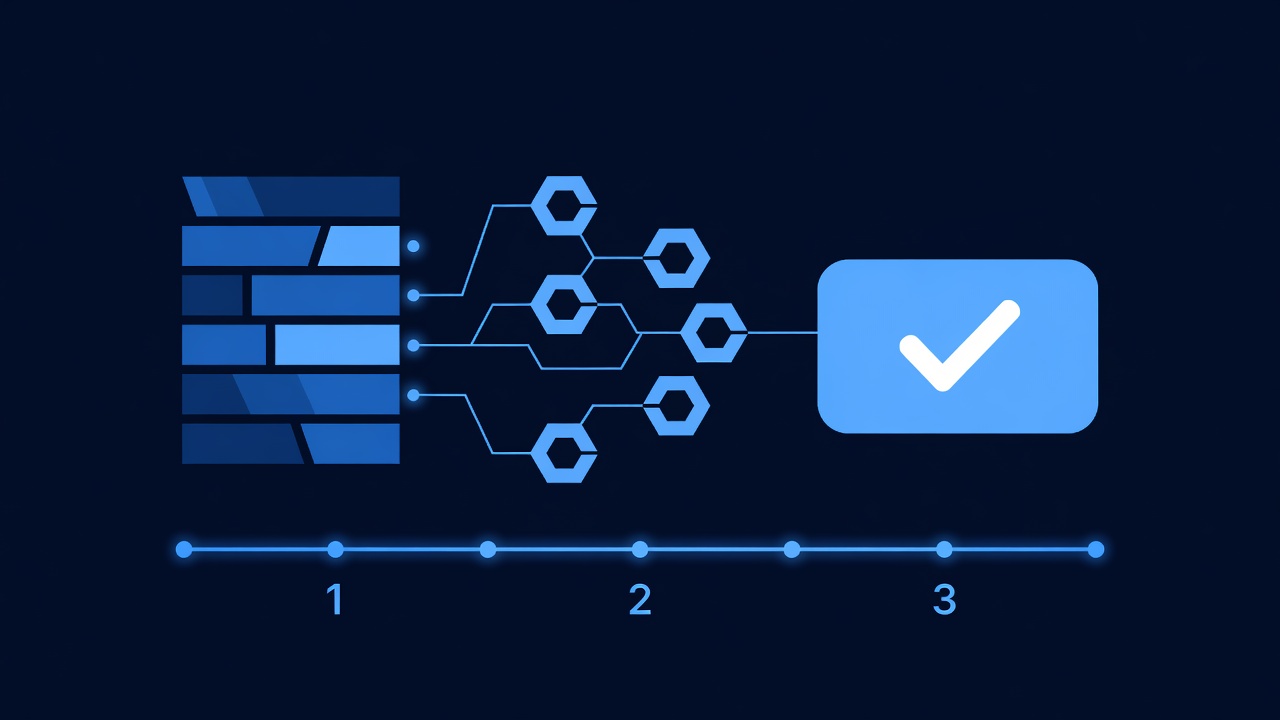
Important: If you’re not in the US, skip to Phase 3. If you’re in the EU, Canada, or Australia, consult Twilio’s regional compliance docs (Twilio 10DLC docs, 2026).
10DLC (10-Digit Long Code) registration is mandatory. Without it, Twilio limits you to 100 SMS/day after the first 100 messages. Registration is free.
Step 2a: Start 10DLC Registration
- In Twilio, go to Compliance → 10DLC Management
- Click Register a Brand
- Select brand type:
- Private Company (most common for small business)
- Sole Proprietor
- Non-profit
- Fill in form:
- Legal Company Name: (matches business registration)
- EIN (Employer ID) or SSN (if sole proprietor)
- Business Address: (where you operate)
- Website: (optional but recommended)
- Phone Number: (contact number)
- Use Case: Select Transactional (order confirmations, appointment reminders) or Marketing (promotional offers, newsletters)
- Submit form
Step 2b: Verify Brand
- Twilio sends confirmation email
- Click link to verify
- Status changes to APPROVED (typically within 1–3 days; can be instant for straightforward cases)
Step 2c: Assign Phone Number to Brand
Once brand is approved:
- Go to Phone Numbers → Active Numbers
- Select your Twilio number
- Click Edit → Campaign
- Select your newly approved brand
- Save
After this step, your SMS volume limit increases from 100/day to 2,000/day (standard tier).
Phase 3: Create GoHighLevel Custom Fields (30 Minutes)
Set up custom fields in GoHighLevel to store SMS consent and reply data.
Step 3a: Add SMS Consent Field
- In GoHighLevel, go to Settings → Custom Fields → Add Custom Field
- Field Name:
SMS_Consent - Field Type: Checkbox or Dropdown (values: Yes / No / Pending)
- Description: “Contact has opted in to SMS marketing”
- Save
Step 3b: Add SMS Replies Field
- Add Custom Field
- Field Name:
SMS_Replies - Field Type: Text Area (stores inbound SMS text)
- Description: “Latest SMS reply from contact”
- Save
Step 3c: Add SMS Timestamp Field
- Add Custom Field
- Field Name:
SMS_Last_Reply_Date - Field Type: Date
- Description: “Date of most recent SMS reply”
- Save
Now you have three fields: SMS_Consent, SMS_Replies, SMS_Last_Reply_Date. These will be populated by automations and webhooks.
Phase 4: Set Up Zapier Webhook (Twilio → GoHighLevel) (45 Minutes)
Zapier is the middleware connecting Twilio SMS sends to GoHighLevel.
Step 4a: Create Zapier Account
- Go to Zapier.com
- Click Sign Up → Create account
- Verify email
Step 4b: Create Zap: “Send SMS via Twilio When Tag Added in GoHighLevel”
This Zap triggers: when you tag a contact with “SMS_Eligible” in GoHighLevel, Zapier calls Twilio’s API to send an SMS.
Step 4b–1: Trigger App (GoHighLevel)
- In Zapier, click Create Zap
- Trigger → Search GoHighLevel
- Select GoHighLevel
- Event: Select Contact Added (or Tag Added to Contact)
- Click Connect and authenticate with GoHighLevel:
- Zapier redirects to GoHighLevel login
- Authorize Zapier to access your contacts
- Test trigger: Zapier shows sample contact data
- Click Continue
Step 4b–2: Action App (Twilio)
- Action → Search Twilio
- Select Twilio
- Event: Select Send SMS
- Click Connect and enter Twilio credentials:
- Account SID: (from Phase 1c)
- Auth Token: (from Phase 1c)
- Authenticate
Step 4b–3: Map Fields
Zapier shows a form to configure the SMS send:
| Field | Value |
|---|---|
| To Phone Number | {{contact.phone}} (from GoHighLevel trigger) |
| From Phone Number | +1 555-0123 (your Twilio number) |
| Message Body | Hi {{contact.firstName}}, thanks for interest. Reply YES or NO. |
- Click Test Action → Zapier sends a test SMS to your phone (if connected)
- Click Continue (if test successful)
Step 4b–4: Activate Zap
- Turn On Zap (toggle switch)
- Name: “Send SMS via Twilio on GoHighLevel Contact Tag”
- Done
How it works: When you tag a GoHighLevel contact with “SMS_Eligible”, this Zap triggers and sends an SMS via Twilio.
Step 4c: Create Zap 2: “Update GoHighLevel Contact When SMS Reply Received”
This Zap handles inbound replies.
Step 4c–1: Trigger App (Twilio Webhook)
- Create new Zap
- Trigger → Search Webhooks by Zapier
- Select Webhooks by Zapier
- Event: Select Catch Raw Hook
- Zapier generates a unique webhook URL:
https://hooks.zapier.com/hooks/catch/XXXXX/YYYY/ - Copy this URL (you’ll paste it into Twilio in Step 4c–5)
- Click Continue
Step 4c–2: Action App (GoHighLevel)
- Action → Search GoHighLevel
- Select GoHighLevel
- Event: Select Update Contact
- Authenticate (if not already connected)
- Contact ID:
{{id}}(extracted from Twilio webhook payload) - Custom Field - SMS_Replies:
{{text}}(extracted from inbound SMS) - Custom Field - SMS_Last_Reply_Date:
{{Date_Received}}(Twilio provides timestamp) - Click Test Action (if test SMS reply exists) → Zapier updates sample contact
- Click Continue
Step 4c–3: Activate Zap
- Turn On Zap
- Name: “Update GoHighLevel Contact on Twilio SMS Reply”
- Note the webhook URL (from Step 4c–1)
- Done
Step 4c–4: Paste Webhook URL into Twilio
Now paste the Zapier webhook URL into Twilio to complete the loop:
- Go to Twilio → Messaging → Settings
- Scroll to Webhook Configuration → Inbound Message Settings
- Request URL: Paste the Zapier webhook URL from Step 4c–1
- HTTP Method: POST
- Save
How it works: Twilio receives an SMS reply → Twilio sends webhook to Zapier → Zapier updates the GoHighLevel contact’s SMS_Replies custom field.
Phase 5: Build SMS Automations in GoHighLevel (1–2 Hours)
Now that Twilio is connected, create automations that trigger SMS sends and process replies.
Step 5a: Automation 1 – “Welcome SMS on New Contact”
Trigger: New contact added Action: Send SMS via Twilio + set SMS_Consent field
Build Steps
- In GoHighLevel, go to Automations → Create Automation
- Trigger: Click Add Trigger → Contact Added
- Step 1: Click Add Step → Tag Contact → Tag:
SMS_Eligible - Step 2: Click Add Step → Zapier (or Webhook)
- Zapier: Select the Zap “Send SMS via Twilio on GoHighLevel Contact Tag” (from Phase 4b)
- Message: “Hi [First Name], welcome! We’ll send updates via text. Reply STOP to unsubscribe.”
- Step 3: Click Add Step → Update Contact → Set
SMS_Consentfield to “Yes” - Click Activate
Test
- Create a test contact in GoHighLevel
- Verify SMS sent from your Twilio number to the test contact’s phone
- Reply “STOP” from the phone
- Verify GoHighLevel contact is updated with reply in
SMS_Repliesfield
Step 5b: Automation 2 – “Reply to SMS YES with Follow-Up Email”
Trigger: SMS reply contains “YES” Action: Send follow-up email + tag as interested
Build Steps
- Create Automation
- Trigger: Click Add Trigger → Tag Added (or Custom Field Updated)
- Condition:
SMS_Repliescontains “YES” - Step 1: Click Add Step → Tag Contact → Tag:
SMS_YES_Reply - Step 2: Click Add Step → Send Email → Select template: “Follow-up: Next Steps”
- Step 3: Click Add Step → Delay → 1 hour
- Step 4: Click Add Step → Send SMS via Zapier → Message: “Thanks for confirming! Booking link: [appointment_link]”
- Click Activate
Test
- Create a contact with phone number
- Trigger the “Welcome SMS” automation (or manually tag as
SMS_Eligible) - Reply “YES” from your phone
- Verify Twilio webhook sends reply to GoHighLevel
- Verify GoHighLevel automation tags contact and sends follow-up email + SMS
Step 5c: Automation 3 – “Re-engagement SMS After No Reply (48 Hours)”
Trigger: SMS sent but no reply after 48 hours Action: Send reminder SMS
Build Steps
- Create Automation
- Trigger: Tag Added → Tag:
SMS_SENT - Step 1: Click Add Step → Delay → 48 hours
- Condition:
SMS_Repliesis empty (i.e., no reply yet) - Step 2: Click Add Step → Send SMS via Zapier → Message: “Hi [First Name], following up on our earlier message. Interested in learning more? Reply YES.”
- Click Activate
Phase 6: Compliance & Opt-Out Management (30 Minutes)
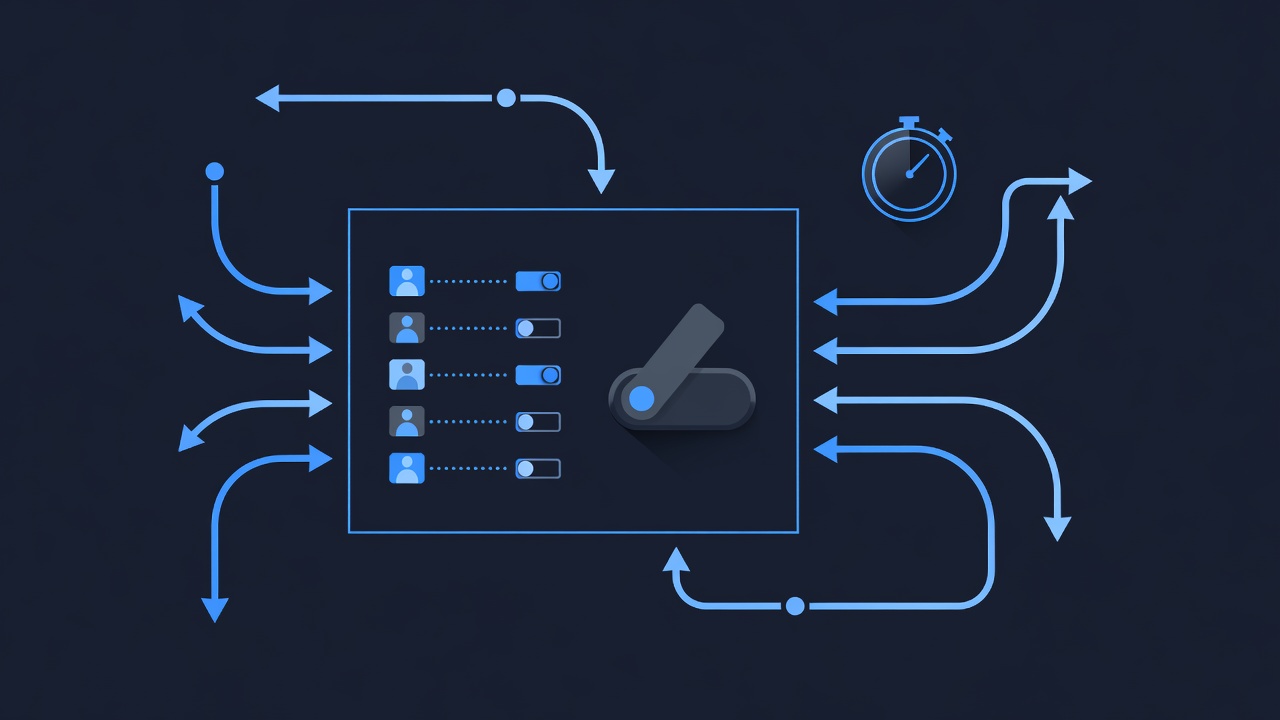
SMS compliance is non-negotiable. Violating SMS regulations can result in fines of $100–500+ per message. Set up guardrails now.
Step 6a: Implement STOP/UNSUBSCRIBE Handling
When a contact replies “STOP”, they must be unsubscribed from SMS automatically.
Create Automation: “Remove SMS Consent on STOP Reply”
- Create Automation
- Trigger:
SMS_Repliescontains “STOP” - Step 1: Click Add Step → Update Contact → Set
SMS_Consentto “No” - Step 2: Click Add Step → Tag Contact → Tag:
SMS_Unsubscribed - Step 3 (optional): Send Email → Message: “You’ve been unsubscribed from SMS. We’ll only email you going forward.”
- Click Activate
Test: Reply “STOP” from your test phone → verify contact is tagged SMS_Unsubscribed in GoHighLevel.
Step 6b: Add SMS Consent to Contact Forms
If you capture contacts via GoHighLevel forms (landing pages, website embeds):
- Go to Forms → Select a form
- Click Add Field → Select
SMS_Consentcustom field - Set as optional (or required, depending on strategy)
- Add disclaimer text: “By checking this box, you agree to receive SMS messages. Message frequency may vary. Standard message and data rates apply. Reply STOP to unsubscribe.”
- Save form
Step 6c: Update Privacy Policy
Add SMS disclosure to your website’s privacy policy:
SMS Communication Policy

We may send you text messages (SMS) related to orders, appointments,
and updates. You will only receive SMS if you have explicitly opted in
via our contact form or verbal request.

To unsubscribe from SMS, reply STOP to any text message or contact us
at [support email].

Message frequency: [variable/weekly/monthly]
Standard message and data rates may apply.
Step 6d: Audit Contacts for SMS Consent
- In GoHighLevel, go to Contacts
- Filter:
SMS_Consent= “Yes” - Verify only opted-in contacts receive SMS (audit every month)
Phase 7: Test & Monitor (2–4 Hours)
Before scaling to your full list, test thoroughly.
Step 7a: Create Test Contacts
Create 3–5 test contacts in GoHighLevel with real phone numbers (your number, team members, etc.):
| First Name | Phone | SMS_Consent |
|---|---|---|
| Test User 1 | +1 555-0100 | Yes |
| Test User 2 | +1 555-0101 | Yes |
| Test User 3 | +1 555-0102 | Yes |
Step 7b: Trigger Each Automation
- Tag test contact 1 with
SMS_ELIGIBLE→ Verify SMS received (from Twilio number) - Reply “YES” from phone → Verify GoHighLevel automation triggers follow-up
- Reply “STOP” → Verify SMS_Consent updated to “No” and future SMS don’t send
- Wait 48 hours (or manually trigger re-engagement automation) → Verify reminder SMS sends
Step 7c: Monitor Twilio Dashboard
- Go to Twilio → Messaging → Logs
- Verify each SMS appears (sent + delivered)
- Check Error Rate: Should be 0% for valid US phone numbers
- Check Bounce Rate: Should be <2% (if higher, list has invalid numbers)
Step 7d: Monitor GoHighLevel Automations
- Go to Automations → Select each automation
- Click History → Verify correct number of contacts triggered
- Review any failed automations (log shows error reason)
Step 7e: Monitor Zapier
- Go to Zapier → Dashboard
- Click on your SMS Zaps
- Check Task History: All tasks should show green (successful)
- If tasks fail, click error message for troubleshooting (e.g., invalid phone number, Twilio auth failure)
Cost Analysis: Twilio vs. Native GoHighLevel SMS
Example: Small Service Business (150 Contacts, 50 SMS/Month)
Option 1: Native GoHighLevel SMS
Pro plan:                   $297/month
SMS add-on:                 +$75/month
Total:                      $372/month

Annual cost:                $372 × 12 = $4,464
Option 2: Twilio + GoHighLevel Integration
Pro plan:                   $297/month
Twilio SMS (50/month):      +$0.50–1/month
Zapier (free tier):         +$0/month (covers 100 tasks/month)
Total:                      $297.50–298/month

Annual cost:                $297.50 × 12 = $3,570
Savings: $4,464 - $3,570 = $894/yearROI: Setup takes 4 hours. If your hourly rate is $50+, breakeven is 8–10 SMS campaigns. For most small businesses, breakeven occurs within 1 month.
Scaling: 500 SMS/Month
Native GoHighLevel SMS: $372/month (no change; SMS unlimited)
Twilio + GoHighLevel:
Twilio SMS (500/month):     $5–10/month
Zapier (free tier):         $0/month (still under 100 tasks/month)
Total:                      $302–307/month

Annual savings:             ($372 - $302) × 12 = $840/year
Even at 500 SMS/month, Twilio saves money. At 5,000+ SMS/month, native SMS becomes more economical (marginal cost approaches zero).
Troubleshooting Common Issues
Issue 1: SMS Not Delivering (Twilio Shows Sent, Phone Doesn’t Receive)
Cause: 10DLC registration incomplete, carrier filtering, or invalid phone number.
Fix:
- Verify 10DLC status in Twilio: Compliance → 10DLC → Status should be APPROVED
- Verify phone number format: Must be E.164 format (e.g.,
+1 555-0123, not555-0123) - Check Twilio logs: Messaging → Logs → Filter by phone number → Look for error code
21611= Invalid phone number format21614= SMS blocked by carrier
- If carrier-blocked, contact Twilio support (most blocks resolve within 24 hours)
Issue 2: Zapier Zap Fails (Red X in Task History)
Cause: Field mismatch, auth token expired, or contact ID missing.
Fix:
- Click failed task → Review error message (Zapier shows exact failure reason)
- Common errors:
- “Contact not found”: GoHighLevel contact ID doesn’t exist → Re-map
{{id}}field - “Invalid phone number”: Phone field empty or malformed → Verify phone field populated in trigger
- “Twilio auth failed”: Credentials expired → Re-authenticate Twilio in Zapier
- “Contact not found”: GoHighLevel contact ID doesn’t exist → Re-map
- After fix, re-test Zap action
Issue 3: SMS Replies Not Updating GoHighLevel Contact
Cause: Webhook URL incorrect or Zapier not receiving replies.
Fix:
- Verify webhook URL in Twilio: Messaging → Settings → Inbound Message Settings → Copy URL
- Paste URL into Zapier: Zaps → SMS Reply Zap → Edit → Check “Request URL” matches
- Verify webhook URL format:
https://hooks.zapier.com/hooks/catch/XXXXX/YYYY/ - Test webhook: In Zapier, go to Zap Settings → Test → Zapier sends sample webhook
- If webhook URL wrong: Delete and recreate the Zapier Zap (generates new URL)
Issue 4: Automations Not Triggering in GoHighLevel
Cause: Trigger condition not met (e.g., tag not applied, custom field not updated).
Fix:
- Go to Automations → Select automation → History
- Verify contact shows in history (if not, trigger didn’t fire)
- Check trigger condition:
- If trigger is “Tag Added”, verify you actually tagged the contact
- If trigger is “Custom Field Updated”, verify field actually changed
- Click contact in history → Verify it matches trigger criteria
- Re-test with a test contact you manually tag/update
Security Best Practices
1. Rotate API Keys Every 90 Days
- In Twilio, go to Account → API Keys & Tokens
- Click Generate New API Key 3