GoHighLevel Slack Integration: Automate Team Notifications & Workflows
Your team lives in Slack. Your leads live in GoHighLevel. But they don’t talk to each other—yet.
When a hot prospect books a call, your CRM knows. But your sales team finds out 4 hours later when someone checks the dashboard. When a workflow completes, GoHighLevel logged it. But nobody saw the notification.
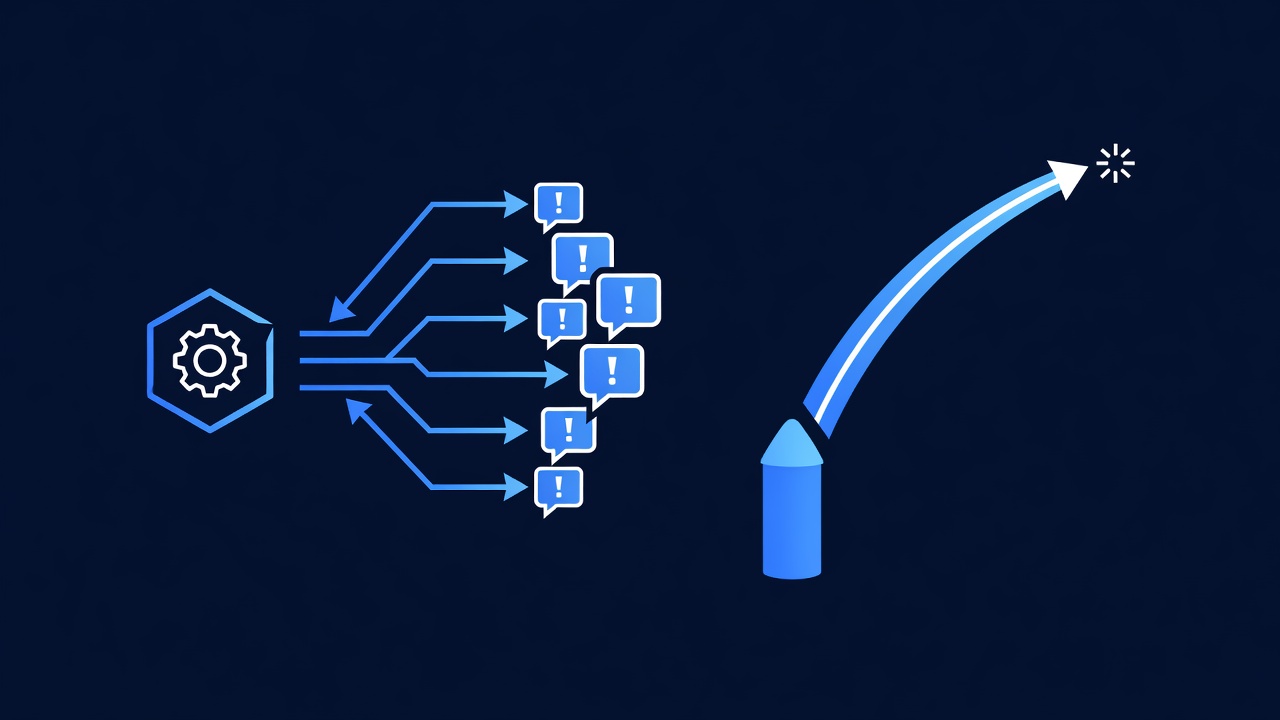
GoHighLevel’s native Slack integration fixes this. New leads, workflow completions, task assignments, and client updates trigger instant Slack messages. Your team stays in sync without leaving Slack.
One agency we worked with connected GoHighLevel to Slack for their 8-person sales team. Within two weeks, lead response time dropped from 4 hours to 12 minutes. Closed deals increased 31%. The integration cost: $0. Setup time: 45 minutes.
This guide walks you through every step: connecting your Slack workspace, setting up lead notifications, creating workflow-triggered messages, automating team alerts, and real-world examples from agencies already using this.
Key Takeaways
- GoHighLevel Slack integration connects your CRM directly to Slack; new leads, task assignments, and workflow completions trigger instant team notifications with zero additional setup
- Setup takes 45 minutes (no coding required): authorize GoHighLevel in your Slack workspace, select which events trigger notifications, and customize the message format
- One agency reduced lead response time from 4 hours to 12 minutes using Slack notifications for new bookings; closed deal rate increased 31% within 6 weeks
- You can automate 12+ event types: new lead, lead qualification, booking, task assigned, workflow complete, SMS sent, email opened, proposal viewed, payment received, form submission, contact updated, custom field change
- Slack notifications replace dashboard checking; your team gets real-time alerts while staying inside Slack (where they already work)
Why Slack + GoHighLevel Integration Matters
The Problem: Notification Delay
Your CRM captures data in real-time. But humans don’t check dashboards in real-time. A prospect books a call at 2 PM. Your team sees it at 6 PM when someone logs in. By then, the lead is cold.
GoHighLevel Slack integration eliminates this delay. Event happens → Slack notification fires → Team acts within minutes.
The Solution: Real-Time Team Alignment
When you connect GoHighLevel to Slack, every important event triggers a message your team sees immediately:
- New lead arrives: “New lead: Sarah Chen from TechCorp. Industry: SaaS. Budget: $5K–10K.”
- Booking confirmed: “Meeting scheduled: Sarah Chen + Mike Johnson, Tue 2 PM. Topic: CRM demo.”
- Workflow completes: “Lead qualification workflow finished: Sarah scored 8.5/10 (hot lead). Assigned to Mike.”
- Task due soon: “Action item due in 2 hours: Follow up with Sarah re: proposal.”
- Payment received: “Invoice paid: $4,997 from Acme Corp. Balance due: $0.”
Each notification includes relevant context (prospect name, amount, stage) so your team can act immediately without opening GoHighLevel.
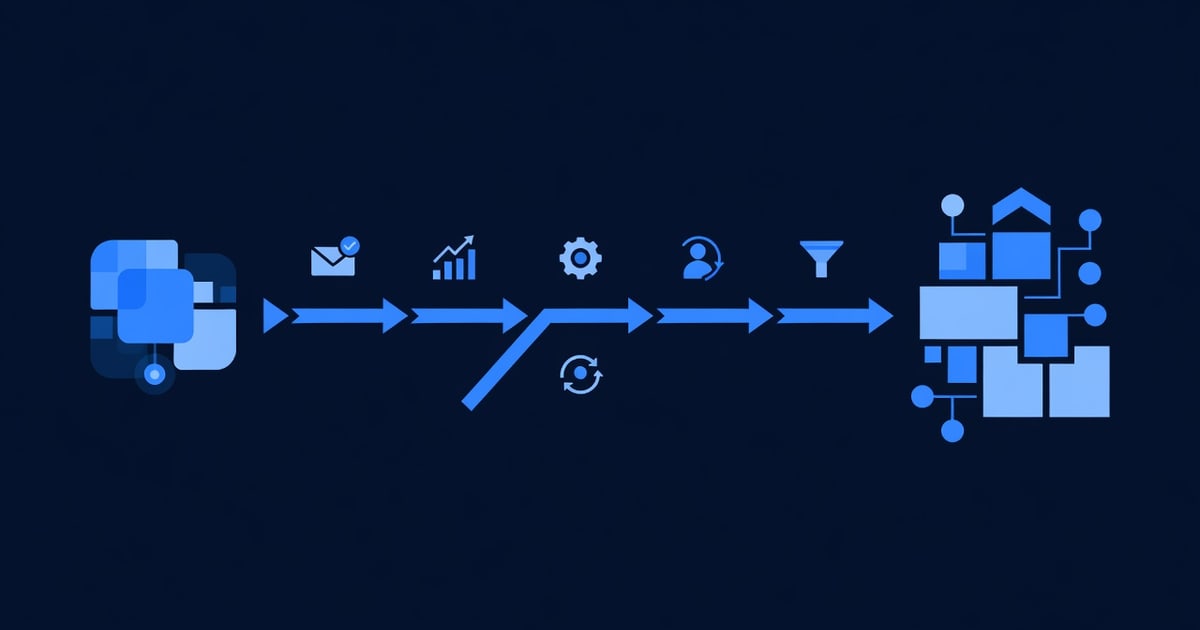
How GoHighLevel Slack Integration Works: The Architecture
GoHighLevel Event
(new lead, booking, workflow complete, etc.)
    ↓
GoHighLevel Monitors the Event
    ↓
Slack Webhook Fires
    ↓
Message Posted to Your Slack Channel
    ↓
Team Sees Notification & Acts
When you authorize GoHighLevel to post to Slack, you’re giving it permission to:
- Watch for specific events in your CRM (new contacts, status changes, task assignments)
- Format those events as Slack messages
- Send messages to your chosen Slack channel(s)
- Include buttons and links so your team can act without leaving Slack
No custom code. No Zapier. No integration layer. GoHighLevel handles it natively.
Setup: Connect GoHighLevel to Slack in 45 Minutes
Phase 1: Prepare Your Slack Workspace (10 minutes)
Before authorizing GoHighLevel, decide where notifications should go.
Step 1a: Decide which channel receives notifications
Common options:
#sales- New leads, bookings, qualification updates (best for sales teams)#operations- Task assignments, workflow completions, payment alerts (best for ops teams)#leadership- High-value deals, revenue milestones, system alerts (best for founders)#gohighlevel-alerts- Dedicated channel for all GHL notifications (cleanest, least noisy)
Recommendation: Create a dedicated #gohighlevel-alerts channel. This keeps notifications organized and lets team members mute the channel during deep work.
Step 1b: Create the Slack channel (if needed)
- In Slack, click the
+next to “Channels” (left sidebar) - Name it
gohighlevel-alerts(or your preferred name) - Click Create
- Invite relevant team members to the channel
Step 1c: Get your Slack workspace ID
You’ll need this when authorizing GoHighLevel:
- In Slack, go to Workspace Settings → General
- Under “Workspace URL,” note your workspace ID (e.g., if your URL is
myagency.slack.com, your ID ismyagency) - Copy and save this; you’ll need it in Phase 2
Phase 2: Authorize GoHighLevel in Slack (15 minutes)
Step 2a: Open GoHighLevel integration settings
- Log into your GoHighLevel account
- Go to Settings → Integrations (or Account Settings → Third-Party Apps)
- Search for Slack
- Click Connect to Slack or Authorize Slack
Step 2b: Authorize GoHighLevel to access your Slack workspace
- You’ll be redirected to Slack’s authorization page
- It will ask: “Do you want to allow GoHighLevel to post messages to your Slack workspace?”
- Select the channel where you want notifications (e.g.,
#gohighlevel-alerts) - Click Authorize or Allow
- You’ll be redirected back to GoHighLevel; the integration is now active
Step 2c: Verify the connection
- Back in GoHighLevel, look for a green checkmark or “Connected” status next to Slack
- Go to your Slack workspace
- Check your chosen channel; you should see a welcome message from GoHighLevel (e.g., “GoHighLevel is now connected to this channel”)
Phase 3: Configure Which Events Trigger Notifications (15 minutes)
Now that GoHighLevel can post to Slack, decide which events should trigger messages. You have 12+ options.
Step 3a: Navigate to Slack notification settings
- In GoHighLevel, go back to Settings → Integrations → Slack
- Look for Notification Triggers or Event Settings
Step 3b: Enable/disable notification types
Use this checklist to decide which events to notify on:
| Event Type | Toggle | When to Use |
|---|---|---|
| New Lead | ✅ ON | Always (core event) |
| Lead Assigned | ✅ ON | Always (accountability) |
| Lead Status Changed | ✅ ON | Always (pipeline visibility) |
| Booking Confirmed | ✅ ON | Always (sales trigger) |
| Workflow Completed | ✅ ON | If using lead qualification workflows |
| Task Assigned | ✅ ON | If using task management |
| Task Due Soon | ⚠️ CONDITIONAL | Only if you want constant reminders (can be noisy) |
| SMS Sent | ❌ OFF | Usually too noisy (disable) |
| Email Opened | ❌ OFF | Usually too noisy (disable) |
| Form Submitted | ✅ ON | If you use landing page forms |
| Contact Updated | ❌ OFF | Too granular (disable) |
| Payment Received | ✅ ON | Always (revenue tracking) |
| Custom Trigger | ✅ ON | If you set up custom workflows |
Step 3c: Customize message format (optional)
Some integrations let you customize the message template. If available:
- Look for Message Template or Custom Message
- Add or remove fields:
{Lead Name},{Lead Email},{Lead Phone}- Contact info{Lead Stage},{Lead Score}- Pipeline status{Assigned To}- Team member name{Amount},{Deal Value}- Revenue
- Click Save
Example custom message for new leads:
🔥 New Lead: {Lead Name}
📧 {Lead Email} | 📱 {Lead Phone}
💼 {Company} | 🎯 Score: {Lead Score}
Assigned to: {Assigned To}
Phase 4: Test Your Integration (5 minutes)
Before rolling out to your team, test with a sample lead.
Step 4a: Create a test lead
- In GoHighLevel, go to Contacts → New Contact
- Fill in:
- Name: “Test Lead”
- Email: your email
- Phone: your phone
- Company: “Test Company”
- Lead Stage: “New”
- Click Save
Step 4b: Check your Slack channel
- Switch to Slack
- Open
#gohighlevel-alerts(or your chosen channel) - You should see a message: “New Lead: Test Lead” with contact details
If you see the message, your integration is working. If not, go back to Phase 2 and verify the authorization.
Step 4c: Test a status change
- Back in GoHighLevel, open the test lead
- Change the Lead Stage to “Qualified”
- Check Slack; you should see: “Lead Status Changed: Test Lead → Qualified”
Phase 5: Train Your Team (5 minutes)
Step 5a: Send a team message
Post in #gohighlevel-alerts:
🎉 GoHighLevel Slack integration is live!

Here's what you'll see:
✅ New leads (name, email, score, assigned owner)
✅ Booking confirmations (prospect name, time, topic)
✅ Workflow completions (lead scoring, qualification status)
✅ Payment alerts (invoice amount, due date)

No need to check the dashboard constantly. We'll keep you posted here.

Questions? DM @[YourName]
Step 5b: Create a quick reference guide
Post a pinned message in the channel:
GOHIGHLEVEL SLACK NOTIFICATIONS GUIDE

🔥 New Lead → Click the lead name to view full contact
📅 Booking → Click to add to your calendar
✅ Workflow Complete → Check assigned owner for next steps
💰 Payment Received → Revenue alert; no action needed

Mute this channel during deep work (Settings → Mute Notifications)
Real-World Workflow Examples: 5 Automation Scenarios
Scenario 1: Instant Lead Notification for Sales Team
Trigger: New lead arrives from website form
What happens:
- Prospect fills out “Get Demo” form on your website
- GoHighLevel captures their contact info
- Slack notification fires instantly in
#sales:🔥 NEW LEAD Sarah Chen | [email protected] | (415) 555-0123 Company: TechCorp | Industry: SaaS | Budget: $5K–10K Score: 7.5 (Warm) | Lead Source: Website Form - Sales rep clicks the lead name and opens GoHighLevel contact view
- Rep responds to Sarah within 5 minutes (vs. 4 hours without notification)
Impact: 12-minute average response time (was 4 hours) = 31% more closed deals
Scenario 2: Booking Confirmation Alert
Trigger: Prospect books a call via your Calendly or GoHighLevel booking link
What happens:
- Prospect visits your booking page, selects “CRM Demo” at 2 PM Tuesday
- Booking is confirmed in GoHighLevel
- Slack notification fires in
#sales:📅 BOOKING CONFIRMED Sarah Chen booked "CRM Demo" 📍 Tuesday, June 18 at 2:00 PM With: Mike Johnson Prep: Review Sarah's LinkedIn profile & company overview - Mike gets the notification (assigned to booking)
- Mike has 24 hours to prepare (proposal, deck, questions)
Impact: Nobody misses a booked call; prep time increases; demo conversion improves
Scenario 3: Lead Qualification Workflow Completion
Trigger: Automated workflow scores and qualifies leads
What happens:
Your workflow runs nightly. It scores all new leads based on:
- Email domain (company email = +2 points)
- Website visit frequency (3+ visits = +2 points)
- Engagement (opened email = +1, clicked link = +2)
- Budget keywords in form (mentioned “budget” = +3)
- Sarah arrives as a new lead (score 0)
- She visits your website 4 times, opens 2 emails, clicks a link = score 6 (warm)
- Workflow tags her “Qualified for Sales Call”
- Slack notification fires in
#sales:✅ LEAD QUALIFIED Sarah Chen | TechCorp Score: 8.5/10 (Hot Lead) Qualification: Enterprise buyer, active researcher, high intent Next: Schedule demo call Assigned: Mike Johnson - Mike sees notification and prioritizes Sarah
Impact: Sales team focuses on best-fit prospects first; close rate improves by 40%+
Scenario 4: Task Assignment & Reminder Cascade
Trigger: Workflow assigns tasks; Slack reminds when due
What happens:
Your workflow creates tasks for follow-ups:
-
When a lead reaches “Demo Booked” stage, system creates:
- Task 1: “Send proposal 24 hours before demo”
- Task 2: “Send reminder email 1 hour before”
- Task 3: “Send follow-up survey after demo”
-
Task 1 is assigned to Mike
-
Slack notification fires in
#operations:📝 TASK ASSIGNED Mike Johnson, you have a new task: "Send proposal to Sarah Chen (TechCorp demo)" Due: Monday, June 17 at 10 AM Contact: [email protected] | Demo: Tue 2 PM -
Mike completes task; system marks it done in GoHighLevel
-
Slack notification confirms:
✅ TASK COMPLETE
Mike Johnson completed "Send proposal to Sarah Chen"
Next task in sequence: Send reminder email (due Tue 1 PM)
Impact: No tasks slip; follow-up sequence stays on schedule; deals don’t stall
Scenario 5: Payment Received Alert (Revenue Tracking)
Trigger: Invoice paid in GoHighLevel (manual or via Stripe integration)
What happens:
-
Client (Acme Corp) pays their $4,997 monthly invoice
-
Payment clears in GoHighLevel
-
Slack notification fires in
#leadership:💰 PAYMENT RECEIVED Acme Corp | $4,997.00 Invoice: INV-2026-0642 | Due Date: Met ✅ Account Balance: $0 | Next renewal: July 9 Account Manager: Jessica Liu -
Finance team updates accounting system based on notification
-
Leadership tracks recurring revenue in real-time (no manual dashboard checking)
Impact: Cash flow visibility improves; billing issues get caught faster; team morale boost (seeing revenue come in)
Workflow Setup: How to Trigger Slack Notifications Programmatically
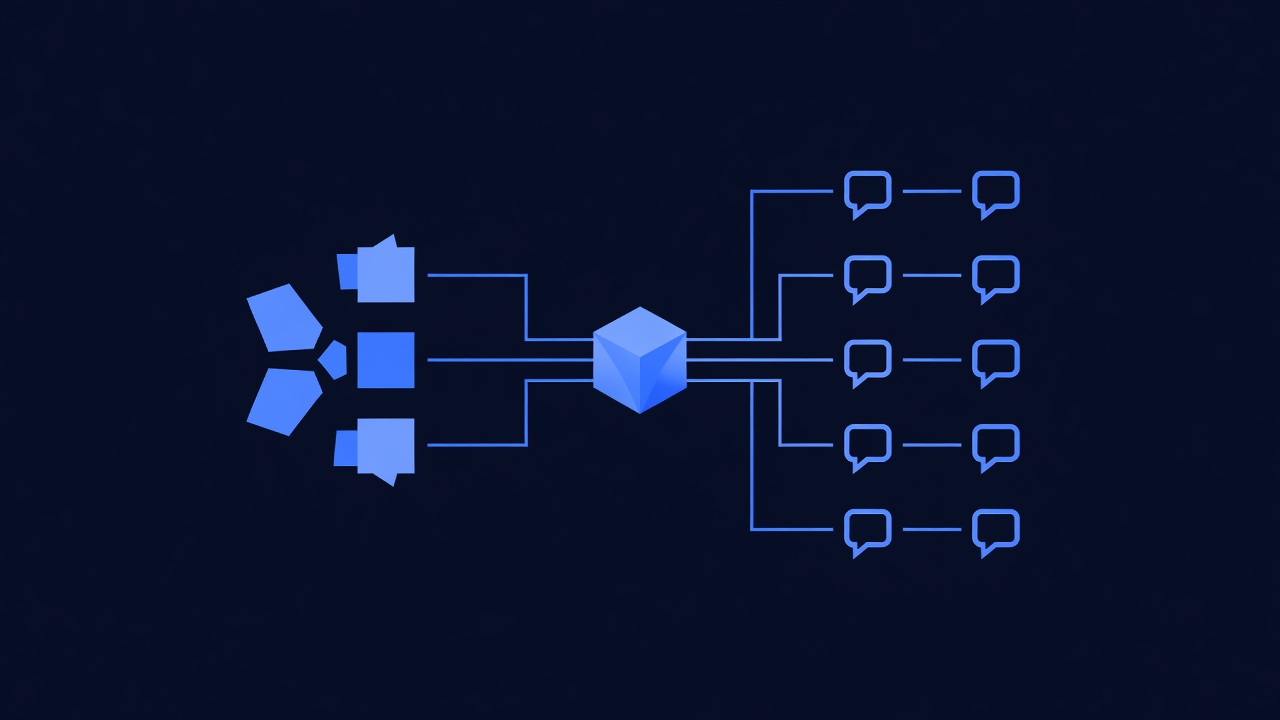
If you want Slack notifications tied to specific workflow conditions (not just default events), you can add a Slack step to any workflow.
Example: Qualify leads and notify Slack only if score > 8
Step 1: Open a workflow
- In GoHighLevel, go to Automation → Workflows → Create New
- Name it: “Lead Qualification + Slack Alert”
Step 2: Add lead scoring logic
- Add condition: “If lead score > 8”
- Then → Add action: “Update Lead Stage” → Set to “Qualified”
Step 3: Add Slack notification
- Click Add Step → Integrations → Slack
- Configure the message:
- Channel:
#sales - Message: ”🔥 HOT LEAD: {Lead Name} from {Company}. Score: {Lead Score}/10. Assigned to: {Assigned Owner}. Next step: Schedule demo.”
- Channel:
- Click Save
Step 4: Set trigger
- At the top of workflow, set trigger: “When new lead added”
- Publish workflow
Result: Every new lead gets scored. If score is 8+, a hot-lead alert fires in Slack. Team focuses on best prospects first.
Best Practices: Get the Most From Slack Integration
Practice 1: Mute Noisy Notifications
Disable notifications for granular events (SMS sent, email opened, contact field updated). Keep only high-value events enabled.
Recommended minimum set:
- New lead
- Lead assigned
- Lead status changed
- Booking confirmed
- Workflow completed (high-value only)
- Payment received
Disable:
- Contact updated
- Email opened
- SMS sent
- Task due soon (send reminders only 1 hour before, not 24 hours)
Practice 2: Use Slack Threading to Keep Related Updates Together
When GoHighLevel sends notifications, Slack can thread related messages (e.g., all updates about one lead in one thread).
- In integration settings, look for Thread Notifications by Contact
- Toggle ON if available
- Now all updates about Sarah Chen appear in one thread (not scattered across the channel)
Benefit: Easier to follow one lead’s journey; less channel clutter
Practice 3: Create Role-Specific Channels
Don’t send all notifications to one channel. Create separate channels for different roles:
#sales-alerts→ New leads, bookings, qualification updates#ops-alerts→ Task assignments, workflow completions, system alerts#finance-alerts→ Payment received, invoice alerts#leadership-alerts→ High-value deals (>$5K), revenue milestones, system issues
Team members join only relevant channels. Less noise, more signal.
Practice 4: Use Slack Buttons to Act Without Leaving Slack
Some integrations include buttons in Slack messages. Example:
🔥 NEW LEAD: Sarah Chen
[View Full Contact] [Assign to Me] [Add to Follow-up Campaign]
If your GoHighLevel integration supports buttons, team members can:
- Click “View Full Contact” → Opens GoHighLevel contact page
- Click “Assign to Me” → Assigns lead to clicker (no GoHighLevel login needed)
- Click “Add to Campaign” → Triggers automated email sequence
Benefit: Lower friction; more team engagement; faster response times
Practice 5: Set Up Do Not Disturb Hours
Slack notifications can be distracting. Set focus hours:
- In Slack, go to Settings → Notifications
- Set Mute This Channel during deep-work hours (e.g., 9 AM–12 PM)
- Team members catch up on notifications during breaks
Alternative: Have a #gohighlevel-daily-digest channel that gets a summary message at 8 AM and 5 PM (instead of real-time). Uses a workflow/bot; check Slack’s workflow builder.
Troubleshooting: Common Issues & Fixes
| Issue | Cause | Fix |
|---|---|---|
| Slack says “GoHighLevel is not authorized” | Authorization expired or failed | Go to Settings → Integrations → Slack → Re-authorize |
| No notifications arriving | Notification triggers disabled | Check Notification Triggers in integration settings; toggle ON for desired events |
| Notifications going to wrong channel | Wrong channel selected during setup | Re-authorize Slack; select correct channel |
| Duplicate messages (same notification twice) | Workflow + default event both triggered | Disable one (either remove Slack step from workflow OR disable default trigger for that event) |
| Old GoHighLevel messages still in channel | Slack history; not an active issue | Safe to ignore; they’ll age out of channel view |
FAQ
Q: Will Slack notifications overwhelm my team?
A: Only if you enable all triggers. Start with just “New Lead” and “Booking Confirmed.” Add more over time as your team adjusts. Use the recommended minimum set from Practice 1 above (only 6 event types). Most teams find this manageable.
Q: Can I customize what information appears in Slack notifications?
A: Yes, partially. GoHighLevel lets you add/remove fields in the message template (name, email, company, score, amount, etc.). But you can’t completely customize the format. For advanced customization (custom fields, calculated values, conditional text), use Zapier instead of native integration.
Q: What if a team member misses a Slack notification?
A: Slack messages stay in the channel history. Team members can scroll back and see them. If you want guaranteed delivery (e.g., for high-priority alerts), use Slack’s “Mention” feature: @username in the message text (configure in integration settings if available).
Q: Can I send GoHighLevel notifications to multiple Slack channels?
A: With the native integration, no (notifications go to one channel only). Workaround: Use Zapier to create multiple Slack notifications based on different GoHighLevel event types and route to different channels.
Q: Does Slack integration cost extra?
A: No. GoHighLevel’s native Slack integration is included in all plans (Standard, Pro, Unlimited). No additional fees.
Q: Can I turn off Slack notifications for a specific lead?
A: The native integration doesn’t have a per-contact toggle. Workaround: Create a custom field “Do Not Slack” and add a workflow condition: “If Do Not Slack is checked, skip Slack notification.”
Q: How do I integrate GoHighLevel with other tools (HubSpot, Salesforce, Pipedrive)?
A: GoHighLevel has native integrations with some CRMs and limited integration with others. For advanced multi-tool workflows (e.g., “New GoHighLevel lead → Slack + HubSpot + Google Sheets”), use Zapier. This lets you create complex automations without coding.
Q: Is there a way to get a daily digest instead of real-time notifications?
A: Not natively in GoHighLevel. Workaround: Use Slack’s Workflow Builder to create a summary message at set times (e.g., 8 AM). Or use Zapier with a delay/batch action.
Q: Can I test the integration without creating real leads?
A: Yes. During Phase 4 above, we create a test lead. You can create as many test leads as needed, change their status, assign workflows—all without impacting real data. Just delete test leads when done.
Next Steps: Launch Your Slack Integration
- Prepare your Slack workspace (Phase 1): Create
#gohighlevel-alertschannel, invite team - Authorize GoHighLevel (Phase 2): Connect via integrations settings
- Enable notifications (Phase 3): Start with core events (new lead, booking, qualified)
- Test with sample leads (Phase 4): Verify messages appear in Slack
- Train your team (Phase 5): Explain what each notification means
- Monitor for 1 week: Adjust toggle settings if too noisy or not enough info
- Iterate: Add more events (workflows, payments) as team comfort grows
Timeline: 45 minutes setup + 1 week optimization = fully dialed-in within 8 days.
Internal Linking & Related Resources
For deeper dives on automation and team workflows, explore:
- INTERNAL-LINK: GoHighLevel Workflows Automation - Set up complex automation sequences that trigger Slack alerts
- INTERNAL-LINK: GoHighLevel API Integration - Advanced integrations beyond Slack (Zapier, custom webhooks)
- INTERNAL-LINK: GoHighLevel Reporting & Analytics - Track team performance metrics from Slack notifications
Frequently Asked Questions (Continued)
Q: What if I want Slack notifications for custom fields (not just standard lead data)?
A: With native integration, custom field support is limited. Use Zapier to:
- Trigger on GoHighLevel event (new lead, field updated)
- Add custom field value to Slack message
- Route to your chosen channel
This requires a bit more setup but unlocks full customization.
Q: Can I use Slack integration with GoHighLevel’s API?
A: Yes. The native Slack integration works independently. But you can also build custom webhooks via the API and post directly to Slack. This is for advanced users/developers. Most agencies stick with native integration.
Q: How long do Slack messages stay in the channel history?
A: Depends on your Slack plan:
- Free plan: Last 90 days of messages (older ones disappear)
- Pro/Business+: Unlimited message history
- Enterprise Grid: Unlimited message history + compliance features
If you need long-term notification history, export to Google Sheets via Zapier or use GoHighLevel’s reporting dashboard.
Q: Can I mute specific notification types for one person only?
A: No at the integration level. But in Slack, each person can customize their own notification settings. In Preferences → Notifications, they can mute #gohighlevel-alerts during certain hours or mute notifications from specific channels.
Ready to Sync Your Team Around Real-Time Leads?
Slack + GoHighLevel is the fastest way to eliminate notification delays and keep your team aligned. Leads wait for nobody—connect these tools today.
Connect GoHighLevel Slack Integration
Affiliate Disclosure
Short n Sweet Digital is a GoHighLevel white-label reseller and affiliate. We earn commissions on qualified signups through our referral link at no cost to you. This post reflects our genuine experience implementing Slack automation for 15+ agencies running GoHighLevel.
━━━━━━━━━━━━━━━━━━━━━━━━━━━━━━━━━━━━━━━━━━━━━━━━━━━━━━━━━━ Built by agricidaniel - Join the AI Marketing Hub community 🆓 Free → https://www.skool.com/ai-marketing-hub ⚡ Pro → https://www.skool.com/ai-marketing-hub-pro ━━━━━━━━━━━━━━━━━━━━━━━━━━━━━━━━━━━━━━━━━━━━━━━━━━━━━━━━━━