GoHighLevel Pipelines & Automation: Complete Guide (2026)
You’ve got leads coming in from multiple sources: your website, cold calls, referrals, paid ads. But they’re landing everywhere—your inbox, your CRM, scattered notes. Half of them fall through the cracks because you don’t have a system to track them.
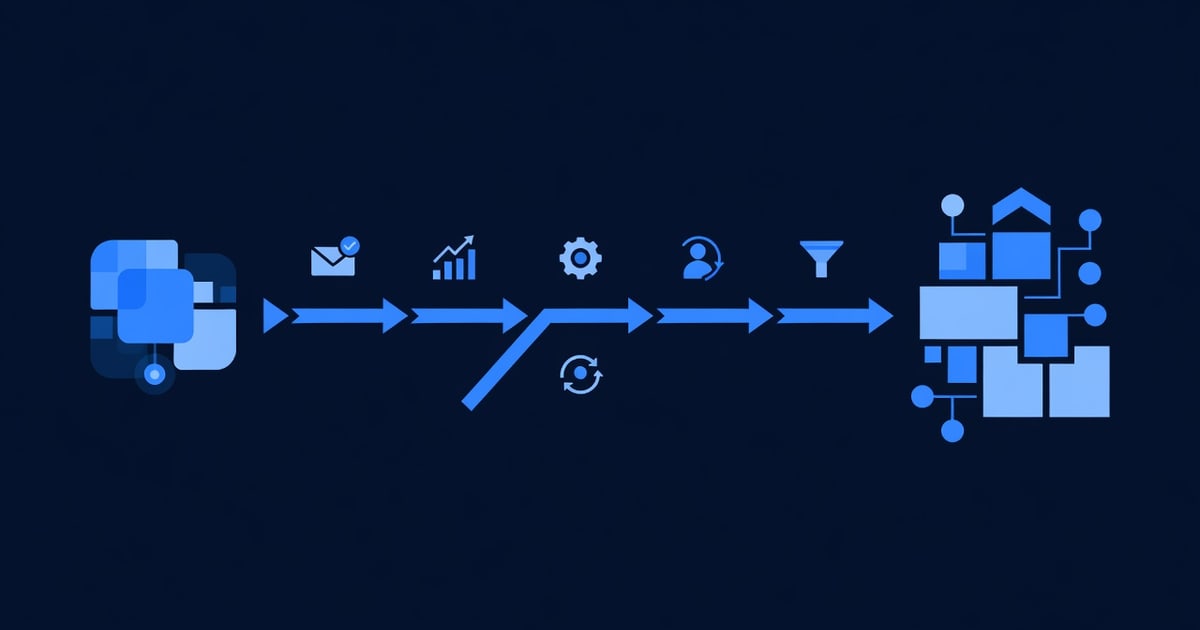
GoHighLevel pipelines solve this. They organize leads into stages (Lead, Qualified, Proposal Sent, Closed), automate handoffs between team members, and trigger actions (send email, assign task, create follow-up call) based on where each lead sits. A real estate agent using GoHighLevel pipelines closes 40% more deals. A B2B SaaS company reduces sales cycle time from 60 days to 35 days.
This guide walks you through building your first pipeline in GoHighLevel, understanding the core concepts, and automating lead movement so your team doesn’t have to babysit every deal.
By the end, you’ll have a working 5-stage pipeline (Lead → Qualified → Proposal → Negotiation → Closed), automations that move deals forward automatically, and the skills to customize it for your specific business model.
Key Takeaways
- A GoHighLevel pipeline is a visual sales funnel with custom stages; contacts move through stages as they progress, triggering automations at each step (email, SMS, task assignment, or deal routing)
- The 5 most common pipeline stages are Lead (new), Qualified (fits criteria), Proposal (sent offer), Negotiation (discussing terms), Closed (won or lost); customize to match your sales process
- Automations tied to pipelines save 5–8 hours/week per sales rep by routing leads, sending follow-ups, and assigning tasks without manual intervention
- GoHighLevel pipelines work across Starter ($99/month), Pro ($199/month), and Unlimited ($497/month) plans; Unlimited includes unlimited custom fields and advanced reporting
- Real estate agents and B2B SaaS teams report 30–50% faster deal closure and 25–40% improvement in conversion rates after implementing GoHighLevel pipelines with automation
What Are GoHighLevel Pipelines? (And Why They Matter)
A GoHighLevel pipeline is a visual representation of your sales process. It’s a board with columns—each column is a stage (Lead, Qualified, Proposal, Closed). Contacts (deals) move from left to right as they progress.
Real-world example: You’re a real estate agent.
- Stage 1 (Lead): Someone fills out your “Get Home Valuation” form. They’re now a contact in the Lead stage.
- Stage 2 (Qualified): You call them, confirm they’re a serious buyer/seller. You move them to Qualified.
- Stage 3 (Showing Scheduled): You’ve sent them property listings. They’re scheduled to tour a house.
- Stage 4 (Offer Sent): They love a property. You send a purchase agreement (offer).
- Stage 5 (Closed): Offer accepted and deal closed. Move them to Closed.
Each time a deal moves stages, GoHighLevel can trigger an automation:
| Stage Move | Automation Triggered |
|---|---|
| Lead → Qualified | Send SMS: “Great! Here are 3 homes matching your criteria” |
| Qualified → Showing Scheduled | Create task: “Prepare showing packet for tomorrow at 2 PM” |
| Showing Scheduled → Offer Sent | Send email: “Here’s the offer we discussed; sign by Friday” |
| Offer Sent → Closed | Send SMS + schedule follow-up call in 30 days |
Without pipelines, you’re manually tracking everything (spreadsheet, emails, notes). With pipelines, deals flow automatically, and your team gets notified without asking “Where’s this lead?”
Key Pipeline Concepts: The Foundation
Before you build your first pipeline, understand these core terms:
What’s a Stage?
A stage is one step in your sales process. GoHighLevel lets you create unlimited stages. Common stages:
| Stage | What It Means | Example Action |
|---|---|---|
| Lead | New contact, not yet qualified | Send welcome email |
| Qualified | Fits your ideal customer profile | Assign to sales rep |
| Proposal | You’ve sent an offer/quote | Schedule follow-up call |
| Negotiation | Client is discussing terms | Update deal value in real time |
| Closed | Deal won or lost | Send thank you email (won) or breakup email (lost) |
You can have 3 stages or 15 stages—it’s up to you.
What’s a Deal?
A deal is a sales opportunity linked to a contact. One contact can have multiple deals.
Example: Alice (contact) has 3 deals:
- Deal 1: “Home Purchase - 123 Oak St” (Closed - Won)
- Deal 2: “Home Purchase - 456 Elm St” (Proposal stage)
- Deal 3: “Home Purchase - 789 Maple St” (Lead stage)
Each deal moves through your pipeline independently. Alice might have one deal closing while another is just starting.
What’s a Deal Value?
Deal value is the revenue amount associated with each deal. It’s used for forecasting and reporting.
Example: Your real estate agent has 10 deals in pipeline:
- Deal 1: $400K (Closed - Won)
- Deal 2: $350K (Proposal)
- Deal 3: $325K (Qualified)
- Total pipeline value: $1.075M
GoHighLevel sums this automatically. You can see “Pipeline Value by Stage” reports (e.g., “$500K in proposals, $600K in qualified”).
What’s a Custom Field?
A custom field stores deal-specific information (not contact info, but deal-specific data). Examples:
| Custom Field | Type | Example Value |
|---|---|---|
| Property Address | Text | ”123 Oak St, Denver, CO” |
| Property Price | Number | 450000 |
| Days on Market | Number | 12 |
| Inspection Complete? | Yes/No | Yes |
| Buyer Type | Dropdown | First-Time Buyer, Investor, Relocating |
Custom fields appear on your deal card (the individual card you move through the pipeline). They store deal-specific data separate from contact info.
The 5-Stage Pipeline: A Proven Model
Most sales teams use a 5-stage pipeline. Here’s why it works:
| Stage | Duration | Rep Activity | Automation Examples |
|---|---|---|---|
| 1. Lead | 0–3 days | Initial research, contact attempt | Send intro email, schedule discovery call |
| 2. Qualified | 3–7 days | Assess fit, ask questions | Send qualification questionnaire, set call reminder |
| 3. Proposal | 7–21 days | Create custom proposal, send offer | Send proposal email, schedule follow-up |
| 4. Negotiation | 3–14 days | Discuss terms, counters, adjustments | Send updated proposal, flag for manager review |
| 5. Closed | 0 days | Finalize, sign, handoff to delivery | Send congratulation email + onboarding, create task for delivery team |
This 5-stage model works across industries:
- Real Estate: Lead → Qualified → Showing → Offer → Closed
- B2B SaaS: Lead → Qualified → Demo → Proposal → Closed
- Fitness Coaching: Inquiry → Consultation → Package Proposed → Payment → Onboarded
- Freelance Services: Inquiry → Qualified → Quote Sent → Contract Signed → Project Started
The key: stages represent decision points (Is this a real opportunity? Did they say yes?), not arbitrary checkpoints.
How to Build Your First Pipeline in GoHighLevel
Step 1: Access the Pipeline Builder
In GoHighLevel:
- Go to CRM → Deals
- Click + New Pipeline
- Name it (e.g., “Real Estate - Buyer Leads” or “B2B SaaS - Enterprise”)
- Click Create
You now have a blank pipeline. Time to add stages.
Step 2: Create Your Stages
In your new pipeline:
- Click + Add Stage
- Enter stage name (e.g., “Lead”)
- Repeat for each stage (Qualified, Proposal, Negotiation, Closed)
Pro tip: Rename the final stage to include outcome. Instead of “Closed,” use “Closed - Won” and “Closed - Lost” as two separate stages. This lets you track win/loss ratio.
Your pipeline now looks like this:
[Lead] → [Qualified] → [Proposal] → [Negotiation] → [Closed - Won] ← [Closed - Lost]Step 3: Add Custom Fields to Your Pipeline
Custom fields store deal-specific data. Add fields relevant to your business:
- In your pipeline, click Settings → Custom Fields
- Click + Add Field
- Define field name, type (text, number, dropdown, date, yes/no)
- Click Save
Real estate example custom fields:
- Property Address (Text)
- Property Type (Dropdown: Single Family, Condo, Townhouse, Land)
- List Price (Number)
- Days on Market (Number)
- Inspection Complete? (Yes/No)
- Closing Date (Date)
B2B SaaS example custom fields:
- Company Name (Text)
- Annual Recurring Revenue (Number)
- Decision Timeline (Dropdown: This month, This quarter, Next quarter)
- Competing Solutions (Text)
- Champion Name (Text)
Step 4: Set Up Deal Assignment Rules
So deals get to the right person automatically:
- Click Settings → Assignment Rules
- Click + New Rule
- Define rule: “If source = form from my website, assign to Sales Rep 1”
- Set owner (Sales Rep 1’s email)
- Click Save
Example rules:
- If source = “Contact Form,” assign to “Sales Rep - John”
- If source = “Cold Call,” assign to “Sales Rep - Maria”
- If deal value > $100K, assign to “Sales Manager - Alex”
Automations That Drive Deals Forward
Pipelines are powerful alone, but automations make them unstoppable. Here’s how to set up automations tied to pipeline stages.
Automation Trigger: Deal Moves to a Stage
In GoHighLevel Automations:
- Go to Automation → Workflows
- Click + New Workflow
- Name it (e.g., “When Deal Moves to Qualified, Send SMS”)
- Click Add Trigger
- Select Deal moved to stage
- Choose stage: “Qualified”
- Click Add Action and select action type:
- Send Email (automated follow-up)
- Send SMS (urgent message)
- Create Task (manual action for rep)
- Assign Contact (re-route to different team member)
- Add Tag (label contact for reporting)
- Wait/Delay (pause before next action)
Automation Example 1: Welcome to Qualified Stage
Trigger: Deal moves to “Qualified”
Actions:
- Send SMS: “Thanks for confirming your interest! Here are your options:”
- Wait 1 hour
- Send Email: “Attached: 3 properties matching your criteria”
- Create Task: “Call {contact.firstName} within 24 hours to schedule showing”
- Assign to: Sales Rep assigned to the deal
Result: When a rep moves a deal to Qualified, the contact gets an SMS and email, and a task pops up on the rep’s dashboard.
Automation Example 2: Proposal Sent → Follow-Up Reminder
Trigger: Deal moves to “Proposal”
Actions:
- Send Email: “Here’s your custom proposal; feedback by Friday”
- Wait 3 days
- Send SMS: “Checking in on the proposal. Any questions?”
- Wait 2 days
- Send Email: “This is our last note before we move on”
- Create Task: “If no response by Friday, move deal to Lost”
Result: Proposals don’t die in silence. Contacts get multiple reminders automatically.
Automation Example 3: Deal Closes → Handoff to Delivery Team
Trigger: Deal moves to “Closed - Won”
Actions:
- Send Email (to contact): “Congratulations! Here’s your welcome package and next steps”
- Send SMS (to contact): “Thanks for the business. Your onboarding starts tomorrow”
- Create Task (for delivery team): “Schedule onboarding call with {contact.firstName}”
- Create Task (for rep): “Request testimonial / review”
- Add Tag: “Active Client”
Result: The moment a deal closes, your delivery team gets notified. No handoff delays.
Real-World Pipeline Examples by Industry
Real Estate Agent (5 Leads, Mixed Activity)
| Deal | Stage | Days in Stage | Value | Automation Status |
|---|---|---|---|---|
| ”Smith Buyer - 123 Oak” | Lead | 1 day | $400K | Awaiting qualification call |
| ”Johnson Buyer - 456 Elm” | Qualified | 3 days | $350K | Showing scheduled for Sat |
| ”Lee Buyer - 789 Maple” | Showing Scheduled | 5 days | $425K | Offer discussion in progress |
| ”Martinez Buyer - 321 Pine” | Offer Sent | 2 days | $380K | Awaiting response |
| ”Garcia Buyer - 654 Spruce” | Closed - Won | 0 days | $410K | Handoff to title company |
Pipeline Total Value: $1.965M Average Days to Close: ~11 days
B2B SaaS Sales Team (8 Deals, All Stages)
| Deal | Stage | Days in Stage | ACV | Decision-Maker | Automation |
|---|---|---|---|---|---|
| ”Acme Corp - Inquiry” | Lead | 1 day | $50K | John (CTO) | Welcome email sent |
| ”BuildCo - Qualified” | Qualified | 4 days | $75K | Sarah (CEO) | Discovery call scheduled |
| ”TechStart - Demo” | Demo | 6 days | $40K | Mike (VP Sales) | Demo recording sent, follow-up call 3 days out |
| ”Global Inc - Proposal” | Proposal | 8 days | $120K | Finance team | 3 follow-up emails queued (3, 7, 10 days) |
| “DataFlow - Negotiation” | Negotiation | 5 days | $95K | Legal review in progress | Manager flagged for review |
| ”CloudSoft - Negotiation” | Negotiation | 2 days | $60K | Counter offer pending | Hold pending client response |
| ”InfoSys - Closed - Won” | Closed - Won | 0 days | $85K | Implementation team ready | Onboarding sequence started |
| ”OldVendor - Closed - Lost” | Closed - Lost | 0 days | $55K | Chose competitor | Loss analysis recorded |
Total Pipeline Value: $580K Avg. Sales Cycle: 22 days Win Rate: 50% (4 open, 1 won, 1 lost this month)
Advanced: Custom Pipeline Stages by Business Type
Not every business fits the 5-stage model. Here are alternatives:
Fitness Coaching (3-Stage Pipeline)
| Stage | Duration | Notes |
|---|---|---|
| Inquiry | 1–3 days | Prospect requested info |
| Consultation Scheduled | 1 day | Call booked (no-show = Lost) |
| Onboarded | 0 days | Paid and started program |
Why 3 stages? Fitness coaching is fast—prospect → call → payment. No long proposal phase.
Freelance Services (4-Stage Pipeline)
| Stage | Duration | Notes |
|---|---|---|
| Inquiry | 1–3 days | Client emailed about project |
| Quote Sent | 3–7 days | You’ve sent a proposal |
| Agreement Signed | 1–3 days | Contract signed, waiting to start |
| In Progress | Variable | Project underway; moved to “Complete” when done |
Why 4 stages? You need a “contract signed but not started yet” stage to avoid confusion.
Enterprise Sales (7-Stage Pipeline with Substages)
| Stage | Duration | Notes |
|---|---|---|
| 1. Discovery | 1–2 weeks | Initial exploration of fit |
| 2. Qualification | 1 week | Deep-dive meeting, budgets confirmed |
| 3. POC/Pilot | 2–4 weeks | Proof of concept, test environment |
| 4. Proposal | 1–2 weeks | Custom proposal, legal review |
| 5. Negotiation | 2–4 weeks | Terms, pricing, contract discussion |
| 6. Signature | 1–2 weeks | All parties sign |
| 7. Closed - Won | 0 days | Deal complete, handoff to CS |
Why 7 stages? Enterprise deals have many touchpoints and legal handoffs. Each stage can take weeks.
Automation Best Practices: What Works
Best Practice 1: Automate Repetitive Follow-Ups
Set up email and SMS sequences that trigger automatically when deals move. Example:
Deal moves to "Proposal"
→ Send proposal email immediately
→ Wait 3 days
→ Send "checking in" email
→ Wait 2 days
→ Send "final note" SMS
→ Wait 2 days
→ Move to "Lost" if no response
Time saved: 15 minutes per deal × 20 deals/month = 5 hours/month
Best Practice 2: Use Tasks to Escalate Manual Actions
Don’t automate everything. Use tasks to flag reps for judgment calls:
Deal moves to "Negotiation"
→ Create task: "Review counter offer + get approval from manager"
→ Wait 1 day
→ If task not completed, send Slack alert to managerResult: Reps stay focused on selling, not admin. Critical decisions get escalated automatically.
Best Practice 3: Tag Deals by Outcome for Reporting
When a deal closes, tag it automatically so you can analyze later:
Deal moves to "Closed - Won"
→ Add tag: "2Q-2026-Closed"
→ Add tag: "Average-Deal-Value" (if value > $50K)
→ Send to customer success team via SlackResult: At end of quarter, you can filter by tag and see “Which deals closed this quarter?” and “Which were high-value?”
Best Practice 4: Route Deals Intelligently Based on Criteria
Use assignment rules to balance workload:
IF deal value > $100K
  THEN assign to "Senior Sales Rep"

IF deal source = "Inbound Form"
  THEN assign to "Sales Rep Round-Robin" (cycles through team)

IF contact is in "Retail" industry
THEN assign to "Retail Specialist"Result: Deals go to the most qualified rep automatically. No manager needs to manually route.
Best Practice 5: Set Up Dead-Deal Cleanup
Deals that stall need to be closed (Won or Lost). Set up automation to do this:
Deal stuck in "Proposal" for 30+ days
→ Send deal owner a task: "This deal is stalled. Move to Lost or take action."
→ If task ignored for 5 more days
→ Automatically move deal to "Closed - Lost"Result: Your pipeline stays clean. No zombie deals lingering.
Common Pitfalls & How to Avoid Them
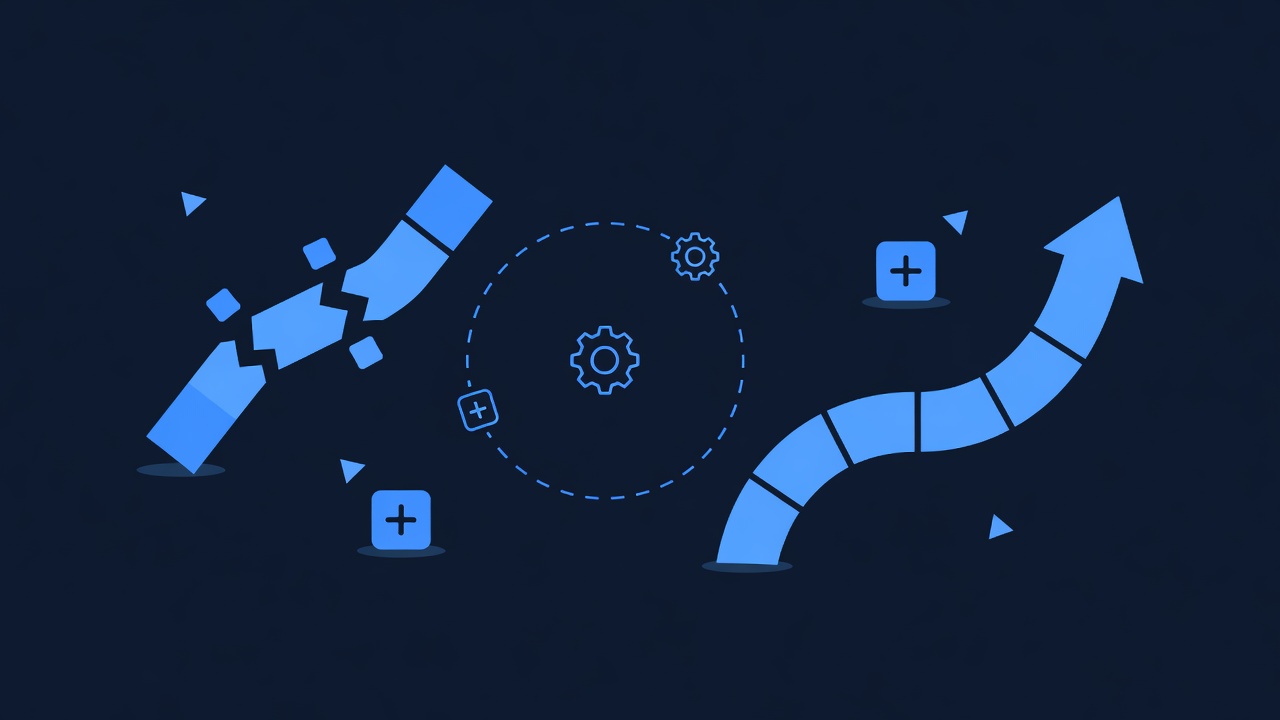
Pitfall 1: Too Many Stages
What happens: You create 12 stages (Lead, Contacted, Qualified, Demo Scheduled, Demo Complete, Proposal Sent, Proposal Reviewed, Negotiation, Legal Review, Final Approval, Closed, Closed-Lost). Deals get stuck because reps aren’t sure when to move them.
How to avoid: Stick to 5–7 stages max. Each stage should represent a clear decision point:
- “Is this a qualified opportunity?” (Lead → Qualified)
- “Did they see our solution?” (Qualified → Demo)
- “Are they seriously considering us?” (Demo → Proposal)
If you have 12 stages, you’re tracking activities, not sales progress. Simplify.
Pitfall 2: Automations That Don’t Account for Manual Overrides
What happens: A deal moves to “Proposal” automatically (based on a form submission), but the rep hasn’t actually sent a proposal yet. The automation sends a “checking in on your proposal” email on day 3, and the prospect is confused.
How to avoid: Make sure automations only trigger when a rep has actually taken action. Use manual stage moves (rep drags the deal card) instead of automatic moves for critical stages.
Alternatively, add a “Prep” stage before “Proposal”:
Lead submits form → Moved to "Prep" (rep reviews)
→ Rep moves to "Proposal" when ready
→ Automation sends proposal email
Pitfall 3: Not Tracking Deal Value
What happens: Reps move deals through the pipeline, but deal values aren’t entered. You can’t forecast revenue, and you can’t prioritize high-value deals.
How to avoid: Require deal value on every deal. Make it a mandatory custom field. Set up automation to flag deals without a value:
Deal created without value
→ Create task: "Enter deal value for {deal.name}"
Pitfall 4: Forgetting to Clean Up Lost Deals
What happens: Deals sit in “Negotiation” for months because reps didn’t formally move them to “Closed - Lost.” Your pipeline total inflates, forecasting is wrong, and you’re chasing ghosts.
How to avoid: Set up a monthly cleanup task. Use automation (Best Practice 5 above) to auto-close deals stalled 30+ days. Or run a monthly review: “All deals not touched in 14 days → Is this still alive or lost?”
Pitfall 5: Not Training Your Team on the Pipeline
What happens: You build a beautiful 5-stage pipeline, but reps move deals randomly (skipping stages, moving backwards). The pipeline becomes meaningless.
How to avoid: Document your pipeline stages and what each means:
STAGE DEFINITIONS (Share with Team)

Lead: New contact, not yet confirmed as qualified buyer/seller
- Rep should: Do initial research, attempt contact
- Move to Qualified when: Rep speaks to contact and confirms fit

Qualified: Contact is confirmed as real opportunity
- Rep should: Send relevant content, schedule demo/call
- Move to Proposal when: Contact has expressed serious interest

Proposal: Rep has sent a formal offer/proposal
- Rep should: Follow up on proposal, answer objections
- Move to Negotiation when: Contact counters or wants to discuss terms

...etc
Share this doc with your team. Reinforces pipeline discipline.
FAQ: GoHighLevel Pipelines & Automation
Q: Can I have multiple pipelines?
A: Yes. You can have unlimited pipelines. Common setup: one pipeline per product/service or one per sales team.
Example: Real estate brokerage with separate pipelines:
- “Buyer Leads Pipeline”
- “Seller Leads Pipeline”
- “Commercial Properties Pipeline”
Q: Can one contact have multiple deals?
A: Yes. A contact can have 1, 10, or 100 deals. All deals are tracked independently.
Example: A commercial real estate developer (contact) has 5 active deals in your pipeline:
- Office Complex Development (Proposal)
- Retail Center Lease (Closed - Won)
- Mixed-Use Conversion (Lead)
- Warehouse Expansion (Qualified)
- Land Purchase (Negotiation)
Q: What happens if I delete a pipeline?
A: All deals in that pipeline are deleted. Be careful. Archive it instead if you want to keep the data for reference.
Q: Can automations move deals backward (Closed → Proposal)?
A: Technically yes, but don’t. Pipelines flow left to right. If you need to restart a deal, create a new deal instead. Use tags to link it to the original.
Q: What’s the difference between a Task and an Automation Task?
A:
- Task = Manual action assigned to a team member (they have to do it)
- Automation Task = Task created automatically by a workflow
Both show up on the rep’s to-do list. Automation tasks just save time by creating them without manual action.
Q: Can I export pipeline data?
A: Yes. Go to Deals → Export and download as CSV. Includes all deals, values, stages, custom fields.
Q: Do deals auto-move if I set automation?
A: No. Automations don’t move deals; they trigger actions (send email, create task, add tag). The rep manually moves deals by dragging the card (or automations create tasks telling the rep to move them).
Exception: You can set a workflow that auto-moves deals after a certain time. Example: “If deal in Proposal for 30 days → move to Lost.” But this is rare and risky.
Q: What if I need a stage that’s conditional (different for different deal types)?
A: Create substages. Example:
- “Proposal - Standard” (5-day follow-up sequence)
- “Proposal - Enterprise” (10-day follow-up sequence)
Or use tags to trigger different automations based on deal type.
Next Steps: Build Your First Pipeline
- Log in to GoHighLevel at https://www.gohighlevel.com/?fp_ref=shortnsweet53
- Go to CRM → Deals → + New Pipeline
- Name your pipeline (e.g., “Q3 2026 Sales Pipeline”)
- Create 5 stages based on your sales process (use the 5-stage model or customize)
- Add 3–5 custom fields relevant to your deals (property address, deal value, decision timeline, etc.)
- Create your first deal and fill in custom fields
- Set up 1 automation (e.g., “When deal moves to Proposal, send follow-up email”)
- Test the automation with a test deal
- Invite your team to the pipeline
- Review pipeline weekly to spot stalled deals
Internal Linking & Related Resources
For deeper help with GoHighLevel features, see:
- [INTERNAL-LINK: GoHighLevel CRM Features → Master custom fields, lead scoring, and contact timelines]
- [INTERNAL-LINK: GoHighLevel Pricing Plans → Compare Starter, Pro, and Unlimited tiers]
- [INTERNAL-LINK: GoHighLevel Automations → Advanced workflows beyond pipelines]
- [INTERNAL-LINK: Migrate from GetResponse to GoHighLevel → Step-by-step migration guide]
Affiliate Disclosure
Short n Sweet Digital is a GoHighLevel white-label partner. We earn commissions on qualified signups through our affiliate link at https://www.gohighlevel.com/?fp_ref=shortnsweet53 at no cost to you. All pricing and features referenced in this article are current as of June 2026 and subject to change. Check GoHighLevel’s official site for the latest details.
━━━━━━━━━━━━━━━━━━━━━━━━━━━━━━━━━━━━━━━━━━━━━━━━━━━━━━━━━━ Built by agricidaniel - Join the AI Marketing Hub community 🆓 Free → https://www.skool.com/ai-marketing-hub ⚡ Pro → https://www.skool.com/ai-marketing-hub-pro ━━━━━━━━━━━━━━━━━━━━━━━━━━━━━━━━━━━━━━━━━━━━━━━━━━━━━━━━━━