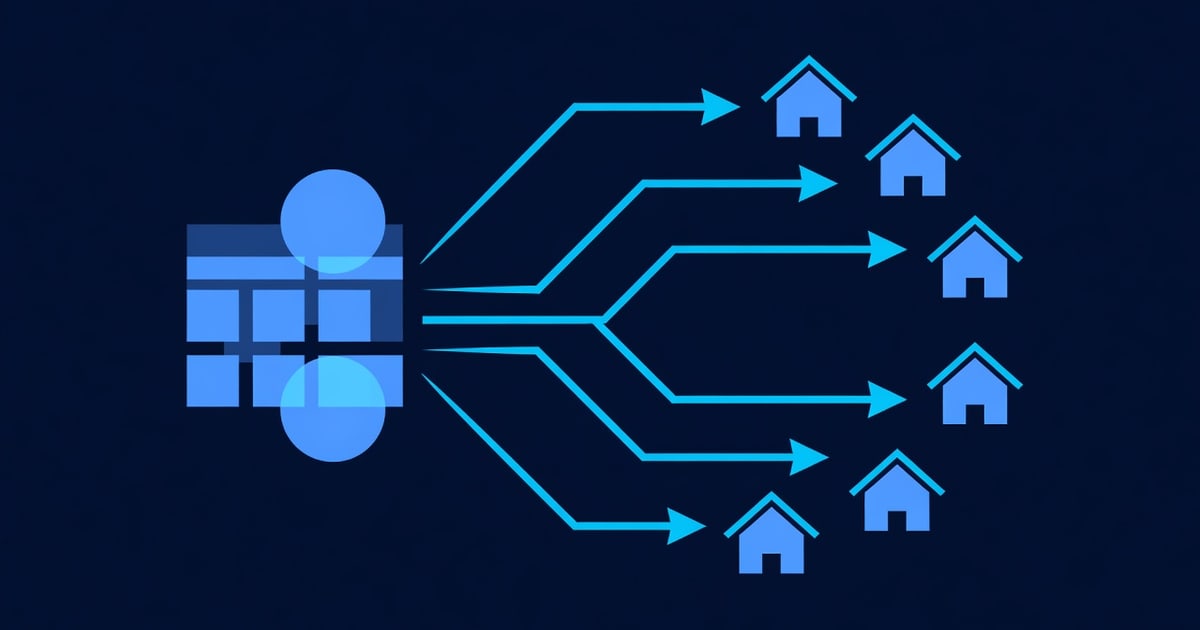
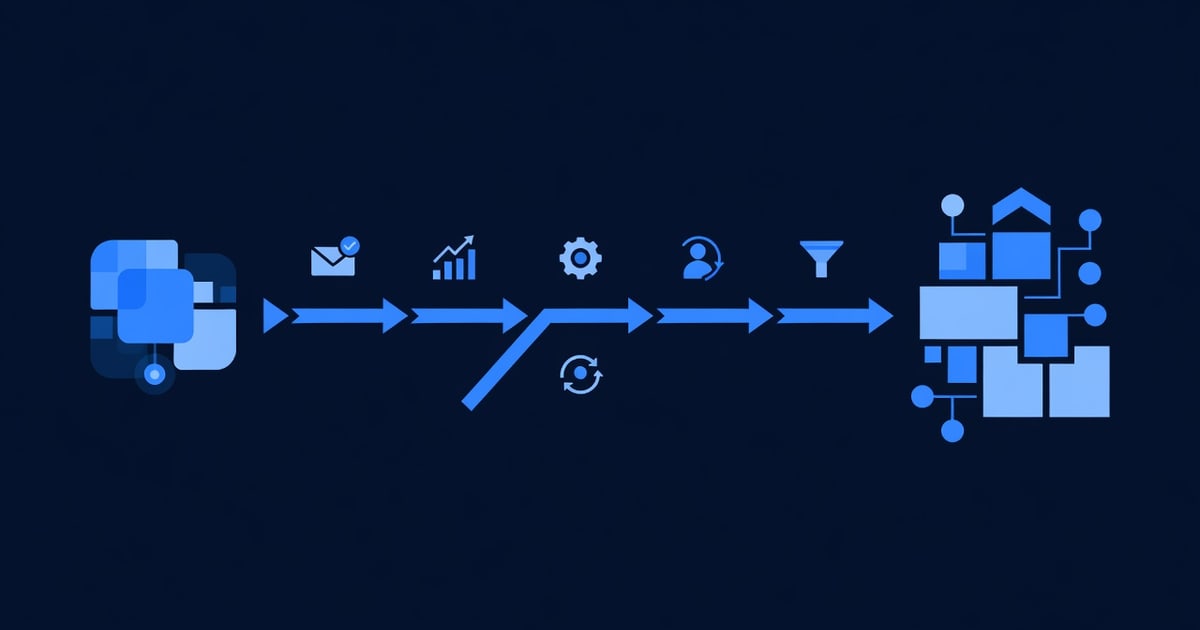
Migrate from GetResponse to GoHighLevel in 5 Steps
You’ve outgrown GetResponse. Your automation needs are more complex. Your team is expanding. You need white-label capability or tighter CRM integration.
The problem: migrating platforms feels risky. What if you lose contact data? What if automations break during the switch? What if downtime costs you leads?
GoHighLevel solves these problems. It costs less than GetResponse for the same features, includes CRM + landing pages + SMS (all built-in), and lets you white-label for clients. But moving your data, contacts, and automations from GetResponse takes planning.
This guide walks you through a 5-step migration strategy that takes 2–4 hours and zero downtime. You’ll preserve all contact data, rebuild automations step-by-step, avoid the three biggest migration pitfalls, and verify everything works before shutting down GetResponse.
Key Takeaways
- You can migrate from GetResponse to GoHighLevel in one afternoon (2–4 hours) using CSV export + import, no data loss
- GetResponse costs $99–$300/month; GoHighLevel Pro costs $199/month and includes CRM, landing pages, SMS, and unlimited automations (GetResponse charges extra for SMS)
- The three biggest migration mistakes are importing duplicate contacts, losing custom fields, and failing to test automations before going live (all covered in this guide)
- Your contact lists, email sequences, and CRM data transfer cleanly via CSV; automations require manual rebuild in GoHighLevel but are often simpler and faster
- Most teams complete the migration and go live on the new platform within 48 hours, with zero downtime and full contact backup
Why Switch from GetResponse to GoHighLevel?
Before we dive into the how, let’s establish the why. GetResponse is a solid email platform, but it has limitations.
GetResponse’s pain points:
- SMS costs extra - GetResponse email is $99–$300/month, but SMS is billed separately ($0.01–$0.05 per message). If you send 5,000 SMS/month, add $50–$250/month on top.
- No built-in CRM - GetResponse calls it a “CRM,” but it’s really email + landing pages. True CRM features (deal tracking, custom pipelines, interaction timeline) are missing.
- Landing pages feel clunky - GetResponse landing pages work, but they’re not as visual or intuitive as GoHighLevel’s drag-and-drop builder.
- No white-label option - If you resell to clients, GetResponse doesn’t let you rebrand it as your own platform. GoHighLevel does (Unlimited plan).
- Automation rules are rigid - GetResponse automation is condition-based (if/then), but it’s limiting compared to GoHighLevel’s workflow builder (which supports complex branches, delays, and multi-channel orchestration).
- Pricing doesn’t scale - GetResponse’s per-subscriber pricing climbs as your list grows ($300+/month for 25K subscribers). GoHighLevel charges a flat $199–$497/month regardless of list size.
GoHighLevel’s advantages:
- All-in-one platform - Email, SMS, CRM, landing pages, funnels, automation, calling, forms. One login, one bill.
- SMS included - Unlimited SMS in Unlimited plan; 5,000/month in Pro. No per-message charge.
- True CRM - Deal pipelines, custom fields, lead scoring, activity timelines, task management.
- White-label option - Resell GoHighLevel as your own platform (Unlimited plan). Build recurring revenue.
- More affordable - $99–$497/month flat rate (no per-subscriber pricing).
- Better automation - Workflow builder is more flexible and visual.
Real number: An agency with 15K email subscribers on GetResponse pays ~$200/month (email) + ~$50/month (SMS) = $250/month. On GoHighLevel Pro ($199/month), they get email, SMS, CRM, and landing pages all included. That’s ~$50/month savings plus way more features.
Overview: The 5-Step Migration Process
Here’s the roadmap:
| Step | Action | Time |
|---|---|---|
| Step 1 | Audit your GetResponse account (lists, automations, custom fields) | 15 min |
| Step 2 | Export contacts from GetResponse as CSV | 10 min |
| Step 3 | Set up GoHighLevel and prepare for import | 20 min |
| Step 4 | Import contacts and map custom fields | 15 min |
| Step 5 | Rebuild automations and test end-to-end | 60–120 min |
Total time: 2–4 hours (most of which is automation rebuild, which is one-time work)
Step 1: Audit Your GetResponse Account
Before you export anything, document what you have.
1a: Count Your Contact Lists
Log in to GetResponse. Navigate to Contacts → Lists.
Take note:
- How many lists do you have?
- How many total subscribers across all lists?
- Are there lists you no longer use (archive or delete these first)?
Example audit:
- List 1: “Main Newsletter” (12,500 contacts)
- List 2: “E-commerce Buyers” (3,200 contacts)
- List 3: “Webinar Attendees - Old” (890 contacts, inactive)
- Total: 16,590 contacts (keeping lists 1 & 2; deleting list 3)
1b: Document Your Automations
Go to Automation → Workflows. For each active automation, write down:
| Automation Name | Trigger | Actions | Est. Contacts Affected | Rebuild Priority |
|---|---|---|---|---|
| New subscriber welcome | Form submission | Send 3 emails (day 0, 3, 7) | 2,000/month | High |
| Abandoned cart recovery | Cart abandonment tag | Send 2 emails (6h, 24h) | 500/month | High |
| Re-engagement sequence | No email open in 60 days | Send 1 email + remove if no response | 400/month | Medium |
| VIP nurture | VIP tag added | Send weekly digest + SMS | 150 | Medium |
Use this table to prioritize rebuilds (high-priority automations first).
1c: Check Custom Fields
Go to Contacts → Custom Fields. List all custom fields you’ve created:
| Field Name | Field Type | Used In | Export Format |
|---|---|---|---|
| Product Interest | Dropdown | Forms, automations | Text (category name) |
| Purchase Amount | Number | Reporting, scoring | Number |
| Preferred Contact Method | Dropdown | Automations, SMS routing | Text |
| Company Name | Text | CRM integration, reports | Text |
When you export, these fields will become CSV columns. Note which ones are critical (you’ll map them in GoHighLevel during import).
Pitfall #1 (avoid this): Forgetting to document custom fields before export. GetResponse exports them, but if you don’t know what they mean, you’ll lose context. Document now.
Step 2: Export Contacts from GetResponse
Now you’ll export your contact lists as CSV files.
2a: Export Each List
In GetResponse:
- Go to Contacts → Lists
- Select your first list (e.g., “Main Newsletter”)
- Click ⋮ (three dots) → Export
- Choose CSV format
- Select All fields (to preserve custom field data)
- Click Export → Save the file
Repeat for each list you want to migrate.
Example file structure:
Email,FirstName,LastName,CreatedDate,Product Interest,Preferred Contact Method
[email protected],Alice,Johnson,2024-01-15,Software,Email
[email protected],Bob,Smith,2024-02-03,Hardware,SMS
[email protected],Carol,Lee,2024-03-10,Software,Email
2b: Consolidate Lists (Optional)
If you have 3 lists and want to merge them into one GoHighLevel contact database (with a tag to distinguish origin), consolidate them now:
- Open all 3 CSV files in a spreadsheet (Google Sheets, Excel)
- Add a column called “Source_List” with the value (e.g., “Main Newsletter”, “E-commerce Buyers”)
- Copy all rows from lists 1 & 2 into a master CSV
- Remove duplicates (if a contact is on multiple lists, keep one row and note both in a “Lists” or “Tags” column)
Deduplication rule: If an email appears in multiple GetResponse lists, take the row with the most complete data (most custom fields filled). This prevents duplicate contacts in GoHighLevel.
2c: Clean the CSV Before Import
Before importing to GoHighLevel:
- Check for invalid emails - Remove rows with blank emails or obvious typos (e.g., “[email protected]” or “@example.com” with no prefix)
- Trim whitespace - Emails sometimes have leading/trailing spaces; use Find & Replace to remove them
- Standardize name fields - If FirstName and LastName are blank, populate them from display names if available
- Validate the header row - First row should be column names: Email, FirstName, LastName, CustomField1, CustomField2, etc.
Use a free tool like DataCleaner or just Google Sheets (built-in data validation and cleanup tools).
Step 3: Set Up GoHighLevel and Prepare for Import
You now have a clean CSV file. Time to set up GoHighLevel.
3a: Create Your GoHighLevel Account
- Go to https://www.gohighlevel.com/?fp_ref=shortnsweet53
- Sign up with your email
- Choose your plan (Pro at $199/month is recommended for most migrations)
- Complete onboarding
3b: Set Up Your CRM
In GoHighLevel:
- Go to CRM → Contacts
- Click Settings (gear icon)
- Review default custom fields (GoHighLevel includes Email, FirstName, LastName, Phone, Company, etc. by default)
- Add custom fields to match your GetResponse fields:
- Click + Add Custom Field
- Name it (e.g., “Product Interest”)
- Select field type (Text, Number, Dropdown, Date, etc.)
- Click Save
Example custom fields to add:
- Product Interest (Dropdown: Software, Hardware, Other)
- Preferred Contact Method (Dropdown: Email, SMS, Phone)
- Purchase Amount (Number)
- Company Name (Text)
3c: Create a Workspace for Imported Contacts (Optional)
If you want to separate imported contacts from new leads (so you can review them before adding to campaigns), create a workspace:
- Go to CRM → Workspaces
- Click + New Workspace
- Name it “GetResponse Import (Review)” or similar
- Set it as the default import destination (you’ll do this during import in Step 4)
This way, imported contacts land in a separate space; you review them, then move them to your main workspace when ready.
Step 4: Import Contacts to GoHighLevel

You have your CSV and GoHighLevel is ready. Time to import.
4a: Start the Import
In GoHighLevel:
- Go to CRM → Contacts
- Click ⋮ (three dots) → Import Contacts
- Click Upload CSV
- Select your cleaned CSV file
- Click Next
4b: Map Your Fields
GoHighLevel will show you a mapping screen. Each column in your CSV needs to map to a GoHighLevel field.
Example mapping:
| CSV Column | GoHighLevel Field |
|---|---|
| Email ✓ (auto-detected) | |
| FirstName | First Name ✓ (auto-detected) |
| LastName | Last Name ✓ (auto-detected) |
| Product Interest | Product Interest (custom field) ✓ |
| Preferred Contact Method | Preferred Contact Method (custom field) ✓ |
| Company Name | Company (built-in field) ✓ |
GoHighLevel auto-maps Email, FirstName, LastName. For custom fields, click the dropdown next to each column and select the corresponding GoHighLevel field.
If a CSV column doesn’t exist in GoHighLevel, skip it (leave the dropdown blank).
4c: Handle Duplicates
On the next screen, GoHighLevel will ask: “If a contact already exists, what should we do?”
Options:
- Skip duplicates (default) - If an email already exists, don’t import it again
- Merge with existing contact - Update existing contact with new data from CSV
Recommendation: Choose Skip duplicates. This prevents overwriting any GoHighLevel contacts you’ve already created.
4d: Set Import Destination
Choose where imported contacts land:
- Main Contacts - They go into your main contact database (best for most cases)
- Specific Workspace - If you created a review workspace (Step 3c), select it here
Click Import and wait. GoHighLevel will process the CSV in the background. You’ll get an email confirmation when it’s done.
Time to import: 10–30 minutes depending on list size.
Step 5: Rebuild Automations in GoHighLevel
This is the heaviest step. You now have all your contacts in GoHighLevel, but your automations didn’t migrate. You’ll rebuild them here.
5a: Start with High-Priority Automations
Refer back to your audit table from Step 1b. Start with automations that affect the most contacts or revenue (e.g., welcome sequence, checkout recovery).
5b: Build Your First Automation (Welcome Sequence Example)
Let’s say your GetResponse automation was:
Trigger: New subscriber (form submission) Actions:
- Email 0: “Welcome” (send immediately)
- Email 3: “Here’s what you get” (send 3 days later)
- Email 7: “Exclusive offer” (send 7 days later)
In GoHighLevel:
- Go to Automation → Workflows
- Click + New Workflow
- Name it “Welcome Sequence - Main List”
- Select trigger: Contact added to a tag or Form submitted
- If you added a tag during import (e.g., “Main_Newsletter_Import”), select that
- Or choose your landing page/form directly
- Click Add Step
- Choose Send Email
- Select email template or create a new one
- Set timing: Immediately
- Click Add Step → Delay
- Set to 3 days
- Click Add Step → Send Email (email 2)
- Click Add Step → Delay (7 days total)
- Click Add Step → Send Email (email 3)
- Click Save and Activate
GoHighLevel workflow is now live. Any new contact tagged with your trigger will go through this sequence.
5c: Common Automation Patterns (Templates)
Most GetResponse automations fit these patterns:
Pattern 1: Welcome Sequence
- Trigger: New contact
- Actions: Send 3–5 emails on schedule (day 0, 3, 7, 14, 30)
- End: Tag as “Engaged” or remove tag if no opens
Pattern 2: Abandoned Cart Recovery
- Trigger: Contact added to “Abandoned_Cart” tag
- Actions: Send SMS (if phone exists), then email 6h later, then email 24h later
- End: Tag as “Recovered” if conversion happens
Pattern 3: Re-engagement Sequence
- Trigger: Contact with no email opens in 60 days
- Actions: Send 1 re-engagement email (“We miss you!”)
- End: Remove contact from list if still no response
Pattern 4: VIP Nurture
- Trigger: Contact tagged “VIP”
- Actions: Send weekly digest email, SMS milestone alerts, monthly call reminder
- End: Continue indefinitely or until VIP tag is removed
Use these patterns to rebuild your automations faster.
5d: Test Your Automations
Before you turn off GetResponse, run a test:
- Create a test contact in GoHighLevel (email: [email protected])
- Add the trigger tag/form that starts the automation
- Wait and verify:
- Did they receive email 1 immediately?
- Did they receive email 2 on day 3?
- Did delays work correctly?
- Check for errors in logs (Automation → [Automation Name] → History)
If tests pass, the automation is ready for live contacts.
Pitfall #2 (avoid this): Not testing automations before going live. A broken automation can result in contacts not receiving critical emails. Always test with a test account first.
Avoiding the 3 Biggest Migration Pitfalls
Pitfall 1: Importing Duplicate Contacts
What happens: You export a list that includes some contacts you already imported, and they end up in GoHighLevel twice (or with conflicting data).
How to avoid:
- Deduplicate your CSV before import (use the deduplication steps in Step 2c)
- During import (Step 4c), select Skip duplicates to prevent re-importing
- If you’re importing multiple lists, check if any contacts overlap and consolidate them first
Test: After import, search for one contact by email. If only one record exists, you’re good.
Pitfall 2: Losing Custom Field Data
What happens: You have custom fields in GetResponse (e.g., “Product Interest”), but they don’t map correctly to GoHighLevel during import, and you lose the data.
How to avoid:
- Document all custom fields in Step 1c
- Create matching custom fields in GoHighLevel (Step 3b) BEFORE importing
- During import (Step 4b), carefully map each CSV column to its GoHighLevel field
- After import, spot-check a few contacts to verify custom fields were imported (click a contact, check the custom field values)
Test: Search for a contact with a custom field value (e.g., filter by “Product Interest = Software”). If you get results, the field was imported correctly.
Pitfall 3: Forgetting to Test Automations Before Going Live
What happens: You rebuild automations, flip the switch, and new contacts start flowing into a broken workflow. Emails don’t send. Leads fall through the cracks.
How to avoid:
- Test each automation with a test contact (Step 5d)
- Don’t turn off GetResponse until you’ve verified at least 3 automations are working in GoHighLevel
- Keep GetResponse running for 48 hours after the switch, monitoring for any issues
Test: Create a test contact in GoHighLevel, trigger the automation, and verify the email lands in your inbox within the expected timeframe.
The 48-Hour Safety Window: Running Both Platforms in Parallel
Best practice: keep GetResponse running for 48 hours after the switch.
Why? If something breaks in GoHighLevel, you have a backup. You can also watch both platforms and verify no leads are lost.
During the 48-Hour Window:
- Route new signups to GoHighLevel (update your form/landing page)
- Keep GetResponse running (existing automations still fire for old contacts)
- Monitor GoHighLevel (check that new contacts are imported and automations are triggering)
- Check your email (verify that automated emails from GoHighLevel are landing)
After 48 Hours:
- Export any new contacts from GetResponse that arrived during the window
- Import them to GoHighLevel
- Confirm GoHighLevel is stable and automations are working
- Export all contact data from GetResponse as a final backup
- Cancel your GetResponse subscription (or keep it on a lower plan if you want a backup)
Checklist: Pre-Migration & Post-Migration
Pre-Migration (Before You Start)
- Exported all contact lists from GetResponse as CSV
- Documented all active automations (trigger, actions, contacts affected)
- Listed all custom fields
- Cleaned CSV file (removed invalid emails, duplicates, whitespace)
- Created GoHighLevel account and selected plan (Pro recommended)
- Added custom fields to GoHighLevel matching GetResponse fields
- Completed field mapping on import screen
Post-Migration (After You Import)
- Verified contact count matches (compare GetResponse total to GoHighLevel total)
- Spot-checked 3–5 imported contacts (custom fields present, no corruption)
- Created at least one automation in GoHighLevel
- Tested automation with test contact (verified email arrived)
- Updated landing page/form to send new signups to GoHighLevel
- Monitored GoHighLevel for 48 hours (new contacts flowing in, automations working)
- Exported final backup from GetResponse (safety net)
- Confirmed all high-priority automations are rebuilt and tested
- Cancelled GetResponse subscription (or downgraded to free tier)
FAQ: Migrate from GetResponse to GoHighLevel
Q: Will I lose any contact data during the migration?
A: No, as long as you follow the steps in this guide. CSV export preserves all contact fields. During import, GoHighLevel maps fields to matching fields in your account. The only data loss happens if you skip the field-mapping step (Step 4b).
Q: How long does the migration take?
A: 2–4 hours start to finish. Most of the time is spent rebuilding automations (60–120 minutes). Contact export/import is ~30 minutes.
Q: Can I migrate GetResponse automations automatically?
A: No, automations don’t transfer directly. GetResponse automations are condition-based (if/then); GoHighLevel uses a visual workflow builder. You’ll rebuild them manually, but GoHighLevel’s automation is actually more intuitive and offers more options (delays, SMS, task creation, etc.).
Tip: Start with high-priority automations (welcome sequence, checkout recovery). Rebuild lower-priority ones later.
Q: What happens to my GetResponse email templates?
A: They don’t migrate automatically, but you can recreate them quickly in GoHighLevel (template builder is similar to GetResponse). Or copy the HTML from GetResponse templates and paste into GoHighLevel’s HTML editor.
Shortcut: Screenshot or save the text/design of your top 3–5 templates before you start, then recreate them in GoHighLevel.
Q: Do I need to tell my contacts I’m switching?
A: No. The switch is behind the scenes. As long as emails keep sending from the same address and contact list, subscribers won’t notice.
Best practice: If you rebrand (new logo, new from address), send a quick email: “We’ve upgraded our email platform to better serve you. No action needed—you’re still on our list.”
Q: Can I keep both GetResponse and GoHighLevel running?
A: Yes, for the 48-hour safety window recommended in this guide. After that, you can either:
- Cancel GetResponse entirely (recommended)
- Keep a free GetResponse account as a backup (if GoHighLevel has issues, you have a fallback)
- Downgrade GetResponse to a lower tier if you want to migrate contacts back later
Q: What if I have a huge contact list (100K+ subscribers)?
A: GoHighLevel handles it fine. The import might take 30–60 minutes depending on file size, but the process is the same. One tip: if your CSV file is huge (> 50MB), split it into 2–3 files and import them separately.
Q: Do I need to re-add my subscribers to my landing page?
A: No. Your GetResponse subscribers are now in GoHighLevel’s CRM. When you create a new landing page form in GoHighLevel, new signups go directly into the CRM. Old GetResponse subscribers are already there—they just won’t be duplicated when you import.
Next Steps
- Start your GoHighLevel free trial (or paid account): https://www.gohighlevel.com/?fp_ref=shortnsweet53
- Download your GetResponse contacts (CSV export) today, before you forget
- Follow the 5-step migration process in this guide
- Rebuild your top 3 automations in GoHighLevel
- Test with test contacts before going live
- Run both platforms for 48 hours (safety window)
- Verify everything works, then cancel GetResponse
Internal Linking & Related Resources
For deeper help on GoHighLevel features, see:
- [INTERNAL-LINK: GoHighLevel CRM Features → Learn about custom fields, pipelines, lead scoring, and activity timelines]
- [INTERNAL-LINK: GoHighLevel Automation Workflows → Build complex multi-step automations with delays, branches, and SMS]
- [INTERNAL-LINK: GoHighLevel Pricing Plans → Compare Starter, Pro, and Unlimited tiers to find the best fit]
- [INTERNAL-LINK: GoHighLevel vs GetResponse → Full feature and pricing comparison]
Affiliate Disclosure
Short n Sweet Digital is a GoHighLevel white-label reseller. We earn a commission on qualified signups through our affiliate link at no cost to you. All pricing and features referenced reflect data current as of June 2025. Check GoHighLevel’s official site for the latest pricing and features.
━━━━━━━━━━━━━━━━━━━━━━━━━━━━━━━━━━━━━━━━━━━━━━━━━━━━━━━━━━ Built by agricidaniel - Join the AI Marketing Hub community 🆓 Free → https://www.skool.com/ai-marketing-hub ⚡ Pro → https://www.skool.com/ai-marketing-hub-pro ━━━━━━━━━━━━━━━━━━━━━━━━━━━━━━━━━━━━━━━━━━━━━━━━━━━━━━━━━━