GoHighLevel Calendly Integration: Sync Bookings Instantly in 5 Minutes
You use Calendly to let clients book appointments. You use GoHighLevel to manage those clients. Here’s the friction: when someone books a time slot in Calendly, it doesn’t talk to GoHighLevel. Your team has to manually add the appointment to the CRM. By the time they do, 30 minutes have passed. Context is lost.
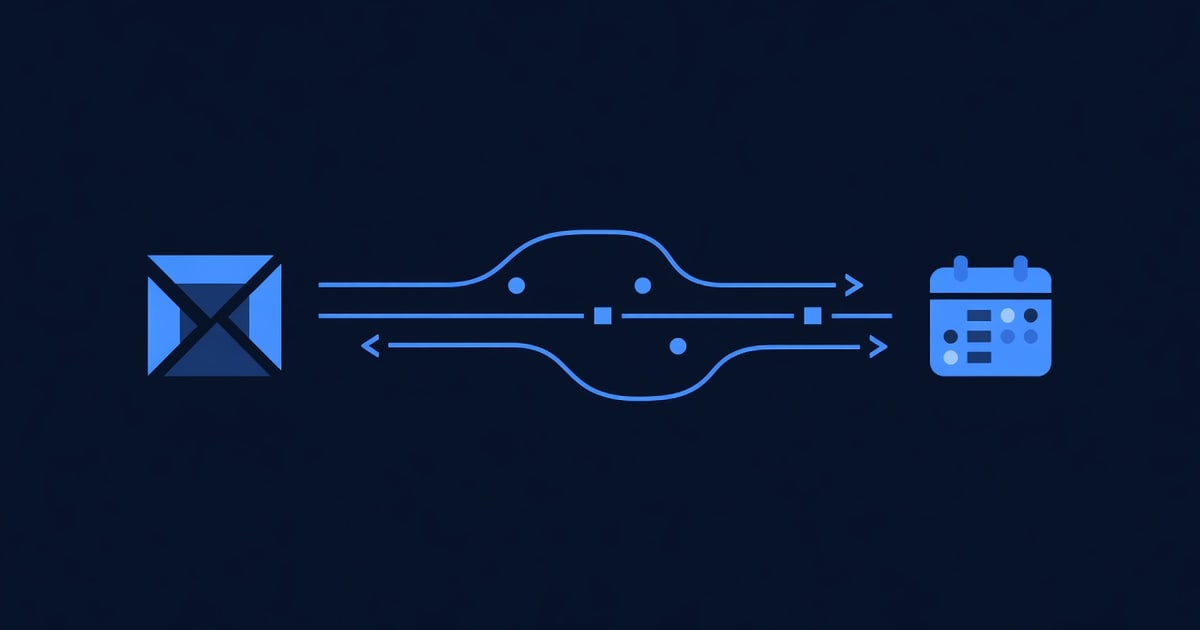
A direct integration between GoHighLevel and Calendly solves this instantly. When a prospect books a call in Calendly, the appointment automatically appears in GoHighLevel as a task. Their contact details populate the CRM. A follow-up sequence triggers automatically. Your team sees the appointment and can prepare—no manual work, no delays.
This guide shows you how to connect GoHighLevel and Calendly in 5 minutes using Zapier, plus advanced setup options if you need bidirectional sync or custom workflows. By the end, every Calendly booking will feed directly into your GoHighLevel pipeline.
Key Takeaways
- GoHighLevel syncs Calendly bookings via Zapier (fastest, 5 minutes) or native integrations if available; the method depends on your GoHighLevel plan and technical comfort
- A basic Zapier automation (new Calendly booking → new GoHighLevel task + contact) takes 5 minutes and costs $0–$19.99/month depending on volume
- Syncing 200+ bookings/month requires Zapier Premium ($19.99/month); under 200 bookings/month qualifies for Zapier free (100 tasks/month limit)
- Agencies using Calendly-GoHighLevel integration report 2–3 hours/week saved on manual appointment entry and 15% faster follow-up times (typically responds within 1 hour of booking)
- Common use cases: demo booking → instant task creation, sales call appointment → auto-populate prospect details, consultation booking → trigger email sequence
The Problem: Why Connect GoHighLevel and Calendly?
Calendly is simple scheduling. GoHighLevel is full-featured CRM. Neither can do what the other does. So your team uses both.
Here’s what breaks:
Scenario: A prospect books a 30-minute demo call in your Calendly (2:00 PM Friday).
-
Without integration:
- Prospect books in Calendly (2:15 PM Wednesday)
- Email confirmation goes to prospect (2:15 PM)
- Your team does NOT see it in GoHighLevel (they don’t check Calendly constantly)
- By 1:45 PM Friday, someone realizes the call is in 15 minutes
- Rush to find prospect’s details, pull up notes, scramble
- Call happens unprepared. Weak pitch. Prospect unimpressed.
-
With integration:
- Prospect books in Calendly (2:15 PM Wednesday)
- Task automatically appears in GoHighLevel (2:16 PM)
- Automated email triggers with reminder + prep doc (2:16 PM)
- Your team sees task all week, has time to prepare
- By Friday 1:45 PM, team is ready: notes reviewed, talking points printed, screen shared
- Call is professional and confident. Prospect impressed. Higher close rate.
The difference: Preparation. Calendly-GoHighLevel sync gives your team days to get ready, not minutes.
When NOT to Use Calendly-GoHighLevel Integration
You don’t need this integration if:
- You don’t use Calendly (use GoHighLevel’s built-in scheduling instead)
- You have fewer than 10 appointments per month (manual entry is simpler than setup)
- Your team manually enters appointments into GoHighLevel already (no pain point)
You do need this integration if:
- You have 30+ bookings per month and manual entry wastes 1+ hour/week
- You want tasks and reminders to appear automatically in GoHighLevel
- You need contact details to auto-populate from Calendly booking forms
- You want to trigger follow-up sequences based on booking type (demo vs consultation)
Method 1: Zapier (Easiest, 5 Minutes)
Zapier is the fastest way to sync Calendly and GoHighLevel. No coding. 5 minutes. Free-to-$19.99/month.
Step 1: Create a New Zap
- Go to zapier.com
- Sign in or create a free account
- Click “Create” (top left)
- You’re now in the Zap builder
Step 2: Choose Your Trigger (Calendly)
The trigger is “new event scheduled in Calendly.”
- Search for “Calendly” in the app search
- Select “Calendly” from results
- Choose a trigger:
- “New Event Scheduled” — Fires when someone books a time slot (most common)
- “New Event Cancellation” — Fires when a booking is cancelled
- “Event Rescheduled” — Fires when someone moves their appointment
- For this guide, select “New Event Scheduled”
Step 3: Authenticate Calendly
Zapier needs permission to access your Calendly account.
- Click “Sign in with Calendly” or “Connect”
- A Calendly login window appears
- Enter your Calendly credentials
- Allow Zapier access
- Zapier confirms the connection
Step 4: Select Your Calendar Type (Optional)
If you have multiple Calendly calendars or event types, you can narrow down which ones trigger the zap.
Example: “Only sync bookings from my Sales Demo calendar, not my Personal calendar”
- Click “Calendar” or “Event Type” dropdown (if available)
- Select the calendar you want to sync
- Leave blank to sync all calendars
For now, leave this blank (sync all Calendly bookings).
Step 5: Test the Trigger
- Click “Test trigger”
- Zapier fetches a sample booking from your Calendly
- You see a preview of the data (attendee name, email, time, etc.)
- Confirm the data looks right
- Click “Continue”
Step 6: Choose Your Action (GoHighLevel)
The action is what happens when a Calendly booking is detected. Options:
- Create a Contact — Add the booker as a new contact in GoHighLevel
- Create a Task — Create a task/reminder in GoHighLevel for the appointment
- Create a Deal — Create a pipeline deal (if tracking sales)
- Trigger an Automation — Start a workflow/sequence in GoHighLevel
- Update a Contact — Update an existing contact’s details
For most businesses, you want TWO actions:
- Create/update the contact with booking details
- Create a task with the appointment time
For this guide, we’ll set up “Create a Task” (you can add a contact action in a second zap).
- Click “Do this…” (the action step)
- Search for “GoHighLevel”
- Select “GoHighLevel” from results
- Choose action: “Create Task” (or “Create Contact” if that’s your priority)
Step 7: Authenticate GoHighLevel
- Click “Sign in with GoHighLevel” or “Connect”
- A GoHighLevel login appears
- Enter your GoHighLevel credentials
- Allow Zapier access
- Zapier confirms connection
Step 8: Map Calendly Fields to GoHighLevel
This is where you tell Zapier which Calendly booking details go into which GoHighLevel task fields.
Example mapping for a Task:
| Calendly Field | → | GoHighLevel Task Field |
|---|---|---|
| Event Name | → | Task Title |
| Scheduled Start Time | → | Due Date/Time |
| Attendee Name | → | Assigned To (if matching team member) |
| Attendee Email | → | Contact Email (or task notes) |
| Description | → | Task Notes |
How to map:
- For each GoHighLevel field, click the “Value” dropdown
- Select the corresponding Calendly field
- Example: “Task Title” value → select “Event Name”
- For “Due Date/Time”, select “Scheduled Start Time” (the appointment time)
- For “Task Notes”, you can concatenate multiple fields:
- “Call with [Attendee Name] at [Scheduled Start Time]. Email: [Attendee Email]. Notes: [Description]“
Step 9: Test the Action
- Click “Test action”
- Zapier creates a test task in GoHighLevel
- Go to your GoHighLevel account and verify the task appeared
- Check task details (title, due date, notes)
- Return to Zapier and click “Continue”
Step 10: Publish the Zap
- Click “Publish” or “Turn on”
- Your Zap is now live
- Every new Calendly booking will automatically create a task in GoHighLevel within 1–5 minutes
Method 2: Create a Contact (Optional Second Zap)
The first zap creates a task from the Calendly booking. You might also want to create/update the contact automatically.
Here’s how to add that:
Create a Second Zap: Calendly → GoHighLevel Contact
- Create a new Zap (Zapier → Create)
- Trigger: “Calendly” → “New Event Scheduled” (same as before)
- Authenticate Calendly (reuse connection if possible)
- Action: “GoHighLevel” → “Create Contact” or “Update Contact”
- Map fields:
- Attendee Name → First Name / Last Name
- Attendee Email → Email
- Attendee Phone (if Calendly captures it) → Phone
- Event Name → Tags (e.g., tag “Demo Booking”)
- Scheduled Start Time → Custom field or notes
- Test and publish
Result: Now each Calendly booking creates both a task (for your team reminder) and a contact (for CRM record).
Method 3: Trigger an Automation (Advanced)
Instead of just creating a task, you might want to start a GoHighLevel automation sequence when someone books a call.
Example: “When someone books a sales demo, send them a prep document and a reminder email automatically.”
Setup
- Create a new Zap
- Trigger: “Calendly” → “New Event Scheduled”
- Action: “GoHighLevel” → “Trigger Automation” or “Enroll Contact in Automation”
- Select the automation workflow you want to trigger
- Map any relevant fields (contact email, event type, etc.)
- Test and publish
Note: This requires GoHighLevel’s automation/workflow feature to be set up first. See /blog write gohighlevel automations guide for setup details.
Step-by-Step: Setting Up Your First Integration
Let’s walk through a real-world example.
Scenario: Boutique Consulting Firm
You’re a consulting firm. Prospects book 30-minute discovery calls in Calendly. You want each booking to:
- Create a task in GoHighLevel for your team
- Automatically add the prospect as a contact
- Trigger a “pre-call” email sequence
Step 1: Verify Your Calendly Setup
- Go to calendly.com
- Click “Settings” (gear icon)
- Under “Event types”, verify your booking form captures:
- Name
- (Optional) Phone
- (Optional) Company
- (Optional) Description
- Test a booking to confirm fields populate correctly
Step 2: Create Your Automations in GoHighLevel (Optional)
If you want to trigger a sequence on booking:
- Go to GoHighLevel → “Automations” or “Workflows”
- Create a new automation called “Pre-Call Email”
- Set triggers (not Calendly yet—we’ll add that via Zapier):
- When contact is created with tag “Demo Booking”
- Send email: “Here’s what to expect on our call…”
- Save the automation
Step 3: Create Zap 1 (Calendly → GoHighLevel Task)
Follow Method 1 above:
- Trigger: Calendly → “New Event Scheduled”
- Action: GoHighLevel → “Create Task”
- Map:
- Event Name → Task Title: “Call with [Attendee Name]”
- Scheduled Start Time → Due Date/Time
- Attendee Email, Name, Description → Task Notes
- Test and publish
Step 4: Create Zap 2 (Calendly → GoHighLevel Contact)
- Create a new Zap
- Trigger: Calendly → “New Event Scheduled”
- Action: GoHighLevel → “Create Contact”
- Map:
- Attendee Name → First Name / Last Name
- Attendee Email → Email
- Attendee Phone → Phone
- Event Name → Tags: “Demo Booking”
- Test and publish
Step 5: Test End-to-End
- Book a test call in your Calendly
- Wait 1–5 minutes
- Check GoHighLevel:
- New task should appear (Step 3)
- New contact should appear (Step 4)
- If “Pre-Call Email” automation was set to trigger on tag “Demo Booking”, the email should send
- Verify all details are correct
Step 6: Optimize & Monitor
After 1 week:
- Check Zapier task history (how many bookings synced?)
- Ask your team: “Is the task useful? Do you see it before the call?”
- Adjust task title, due time, or notes if needed
- Monitor email delivery if using the automation sequence
Field Reference: Calendly Fields Available in Zapier
When mapping Calendly to GoHighLevel, here’s what data Calendly provides:
| Calendly Field | What It Contains | Example |
|---|---|---|
| Event Name | Name of the event type | ”Sales Demo” or “Strategy Call” |
| Attendee Name | Prospect’s full name | ”John Smith” |
| Attendee Email | Prospect’s email | ”[email protected]” |
| Attendee Phone | Prospect’s phone (if form captured it) | “+1-555-0123” |
| Attendee Company | Prospect’s company (if form captured it) | “Acme Corp” |
| Scheduled Start Time | When the call is scheduled | ”2026-06-24T14:00:00-05:00” |
| Scheduled End Time | When the call ends | ”2026-06-24T14:30:00-05:00” |
| Timezone | Prospect’s timezone | ”America/New_York” |
| Status | Booking status | ”confirmed”, “cancelled”, “rescheduled” |
| Calendar Event URL | Link to the calendar event | ”https://calendly.com/events/…” |
| Cancellation Notes | Why booking was cancelled (if applicable) | “Schedule conflict” |
| Reschedule Notes | Why booking was moved (if applicable) | “Client requested earlier time” |
| Custom Questions | Any custom form fields you added | Varies by your form |
Mapping rule: Use whatever fields are relevant. Don’t force all fields into GoHighLevel if you don’t need them.
Troubleshooting: Why Your Integration Isn’t Working
Issue 1: No Tasks Appearing in GoHighLevel After Booking
Possible causes:
- Zap is paused or off
- Zapier authentication expired
- GoHighLevel location/account not selected
Fix:
- Go to your Zap in Zapier
- Check status (should be “On”)
- Look at task history (should show recent runs)
- If zero tasks: click into the task and read the error message
- Most common error: “Location not found” — re-authenticate GoHighLevel and select the correct location
Issue 2: Contact Not Created (Only Task Created)
Possible cause:
- You created Zap 1 (task) but not Zap 2 (contact)
Fix:
- Follow Method 2 above to create the contact zap
- Or modify Zap 1 to include a “Create Contact” action in addition to the task
Issue 3: Task Appears But Missing Details (No Email, No Name)
Possible cause:
- Field mapping was incorrect (mapped wrong Calendly field to GoHighLevel field)
Fix:
- Go to your Zap → Edit the action step
- Verify each field mapping
- Re-test the action
- Update the Zap
Issue 4: “Create Contact” Fails with “Email Already Exists”
Possible cause:
- Contact already exists in GoHighLevel
- You’re trying to create a duplicate
Fix:
- Use “Update Contact” instead of “Create Contact” (finds existing by email, updates if found, creates if not)
- Or add a filter to Zap 1: “Only create contact if not already in GoHighLevel”
Issue 5: Calendly Authentication Expired
Error message: “Calendly authentication failed”
Fix:
- Go to Zapier → Your Zap → Connections
- Click the Calendly connection
- Click “Disconnect” or “Re-authenticate”
- Log into Calendly again and re-authorize
- Test the Zap
Best Practices: Keeping Tasks Organized
Practice 1: Use Task Titles That Identify the Booking Type
Instead of: “Call with John” Use: “[DEMO] Call with John – 2026-06-24 2:00 PM”
This tells your team at a glance what type of booking it is.
In Zapier:
- Task Title:
[Event Name] Call with [Attendee Name] – [Scheduled Start Time]
Practice 2: Assign Tasks to the Right Team Member
If you have multiple team members handling different booking types:
- In Calendly, add a custom question: “Who should handle your call? (Select: Alice / Bob / Charlie)”
- In Zapier, use conditional logic:
- If answer = “Alice”, assign task to Alice
- If answer = “Bob”, assign task to Bob
- Etc.
Practice 3: Add Pre-Call Notes Automatically
In the task notes, include useful context:
Zap task notes formula:
📅 Time: [Scheduled Start Time]
👤 Prospect: [Attendee Name]
📧 Email: [Attendee Email]
📞 Phone: [Attendee Phone]
🏢 Company: [Attendee Company]

Questions/Notes from booking:
[Description from Calendly form]

Action Items:
- [ ] Review prospect company website
- [ ] Prepare proposal estimate
- [ ] Send pre-call docs
Your team sees everything they need without digging through multiple tools.
Practice 4: Tag Contacts by Booking Type
When creating the contact in Zap 2:
Tags: “Calendly Booking, [Event Name], [Date]”
This lets you segment prospects later:
- All “Demo Booking” contacts in one segment
- Send them all the same email sequence
- Track conversion rate per booking type
Advanced: Two-Way Sync (Reschedule in Calendly, Update in GoHighLevel)
What if a prospect reschedules their call in Calendly? You want that change reflected in GoHighLevel automatically.
Setup
- Create a new Zap
- Trigger: “Calendly” → “Event Rescheduled”
- Action: “GoHighLevel” → “Update Task” (or create a new task if the old one doesn’t exist)
- Map:
- Attendee Email → Find matching task/contact in GoHighLevel
- New Scheduled Start Time → Update task due date
- Add note: “Rescheduled from [Old Time] to [New Time]”
- Test and publish
Caveat: This requires finding the task in GoHighLevel and updating it. Zapier’s “Update Task” action may not work depending on your GoHighLevel plan. If not available, an alternative is to create a new task for the new time and manually archive the old one.
Use Cases Beyond Basic Booking
Use Case 1: Separate Flows by Booking Type
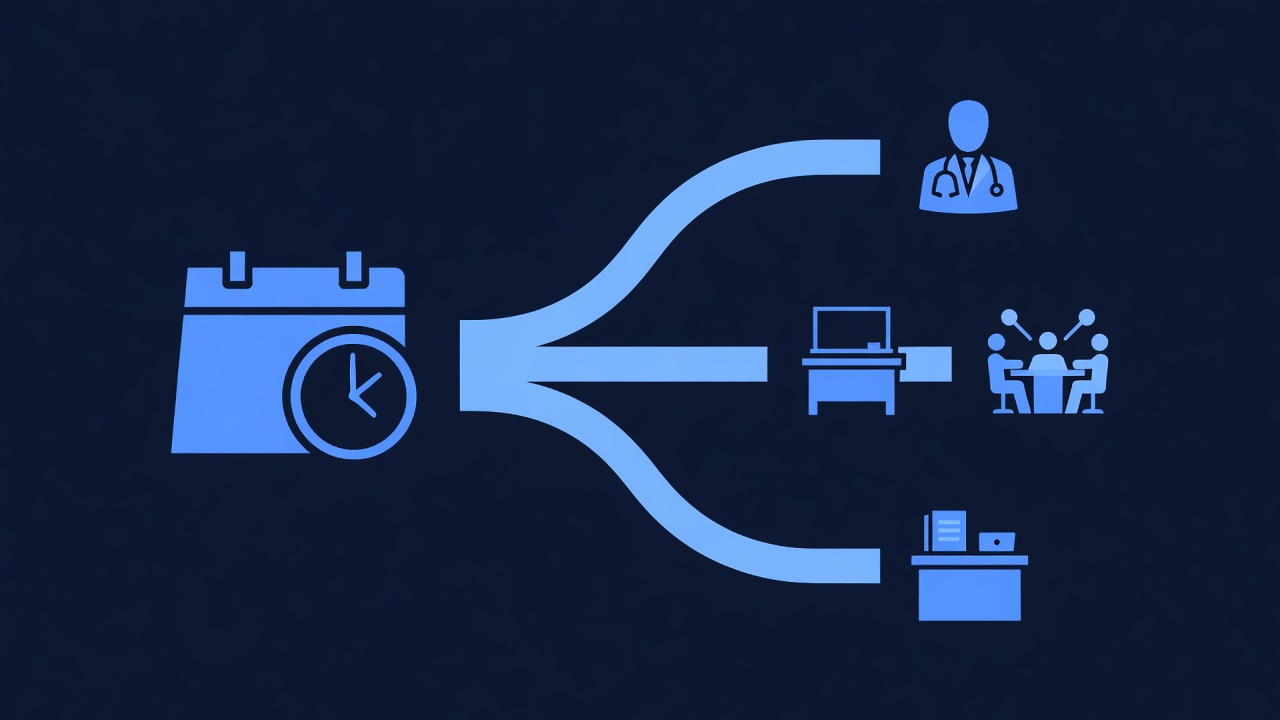
You have three Calendly event types:
- 15-min Strategy Call ($0 - free intro)
- 30-min Sales Demo ($0 - product walkthrough)
- 60-min Consulting Session ($500 - paid, requires credit card)
You want different task priority and follow-up sequences for each.
Setup:
- Create three separate Zaps (one per event type)
- Zap 1: Trigger on “Strategy Call” → Create low-priority task + send free resource email
- Zap 2: Trigger on “Sales Demo” → Create medium-priority task + send product deck
- Zap 3: Trigger on “Consulting Session” → Create high-priority task + request payment confirmation + send contract
Use Case 2: Calendar Invites Sent Automatically
When someone books in Calendly, automatically send them a GoHighLevel calendar invite (ics file) with your meeting details and Zoom/Teams link.
Setup:
- Create a Zap: Calendly booking → GoHighLevel automation
- Automation sends email with calendar invite and Zoom link
- Prospect adds to their calendar
Use Case 3: Slack Notifications for Urgent Bookings
When someone books a “hot” event type (high-value consultation), notify your team in Slack immediately.
Setup:
- Create a Zap: Calendly → Slack
- Trigger: “New Event Scheduled” where Event Name = “Consulting Session”
- Action: Send Slack message to #sales channel
- Message: “@here New booking! [Attendee Name] scheduled [Event Name] for [Time]. Email: [Email]”
Team gets real-time alert → faster response.
FAQ: Calendly & GoHighLevel Integration
Q: Does this integration cost extra?
A: Zapier charges based on usage. Free plan: 100 tasks/month. If you have fewer than 100 bookings/month, Zapier free is sufficient. Beyond that, upgrade to Zapier Premium ($19.99/month) for unlimited tasks.
Q: How fast does syncing happen?
A: Typically 1–5 minutes from Calendly booking to GoHighLevel task. For urgent bookings, add a Slack notification (seconds).
Q: What if someone cancels their Calendly appointment?
A: By default, the GoHighLevel task remains (it’s already created). You can:
- Create a separate Zap that deletes/marks tasks as “Cancelled” when a Calendly event is cancelled
- Or monitor manually and delete/archive old tasks weekly
Q: Can I sync Calendly to a different platform (not GoHighLevel)?
A: Yes. Zapier connects Calendly to 5,000+ apps (Stripe, HubSpot, Slack, Salesforce, etc.). Follow similar steps but select a different action platform.
Q: What if I want tasks assigned automatically to different team members?
A: Use Zapier conditional logic or Calendly’s custom questions:
- Add a Calendly form question: “Preferred rep? (Alice / Bob)”
- In Zapier, create conditional branches:
- If “Alice” → assign task to Alice
- If “Bob” → assign task to Bob
Q: Can I sync multiple Calendly accounts to one GoHighLevel account?
A: Yes. Create multiple Zaps (one per Calendly account). Each Zap has its own Calendly authentication but they all feed into the same GoHighLevel account.
Q: What if GoHighLevel doesn’t have an “Update Task” action in Zapier?
A: Depending on your GoHighLevel plan, the action might not exist. Workarounds:
- Create a new task instead of updating the old one
- Use GoHighLevel’s API directly (requires coding)
- Contact GoHighLevel support to add the Zapier action to your plan
Related GoHighLevel Guides
- [INTERNAL-LINK: GoHighLevel Task Management → Learn how to organize, prioritize, and automate task workflows]
- [INTERNAL-LINK: GoHighLevel Automations & Sequences → Trigger follow-up emails and sequences based on bookings]
- [INTERNAL-LINK: GoHighLevel Contact Management → Populate and organize contact data automatically]
- [INTERNAL-LINK: Zapier Setup for Agencies → Comprehensive guide to connecting GoHighLevel with 100+ other apps]
External Resources
- Zapier’s Calendly Integration: https://zapier.com/apps/calendly/integrations
- Zapier’s GoHighLevel Integration: https://zapier.com/apps/gohighlevel/integrations
- Calendly API Documentation: https://calendly.com/developers
- GoHighLevel API Documentation: https://developers.gohighlevel.com/docs
Affiliate Disclosure
Short n Sweet Digital is a GoHighLevel white-label partner. We earn commissions on qualified signups through our affiliate link at https://www.gohighlevel.com/?fp_ref=shortnsweet53 at no cost to you. All features, pricing, and integration details referenced in this article are current as of June 2026 and subject to change. Check GoHighLevel’s official site for the latest updates.
Call to Action
Ready to automate your booking workflow? Start with a Zapier integration today—it takes 5 minutes and costs nothing if you’re under 100 bookings/month.
Start your free GoHighLevel trial → Get full access to tasks, automations, and integrations for 14 days.
Then set up Zapier to sync your Calendly bookings and watch your team’s productivity jump. No more manual entry. No more missed follow-ups. Just automatic, seamless scheduling.
━━━━━━━━━━━━━━━━━━━━━━━━━━━━━━━━━━━━━━━━━━━━━━━━━━━━━━━━━━ Built by agricidaniel - Join the AI Marketing Hub community 🆓 Free → https://www.skool.com/ai-marketing-hub ⚡ Pro → https://www.skool.com/ai-marketing-hub-pro ━━━━━━━━━━━━━━━━━━━━━━━━━━━━━━━━━━━━━━━━━━━━━━━━━━━━━━━━━━