
How to Set Up GoHighLevel Sub-Accounts: Step-by-Step Guide (2026)
You’re a GoHighLevel white-label agency. Your client just signed a contract and expects to log into their own branded CRM tomorrow. But you’re staring at your GoHighLevel parent account thinking, “How do I give them access without exposing my other clients’ data?”
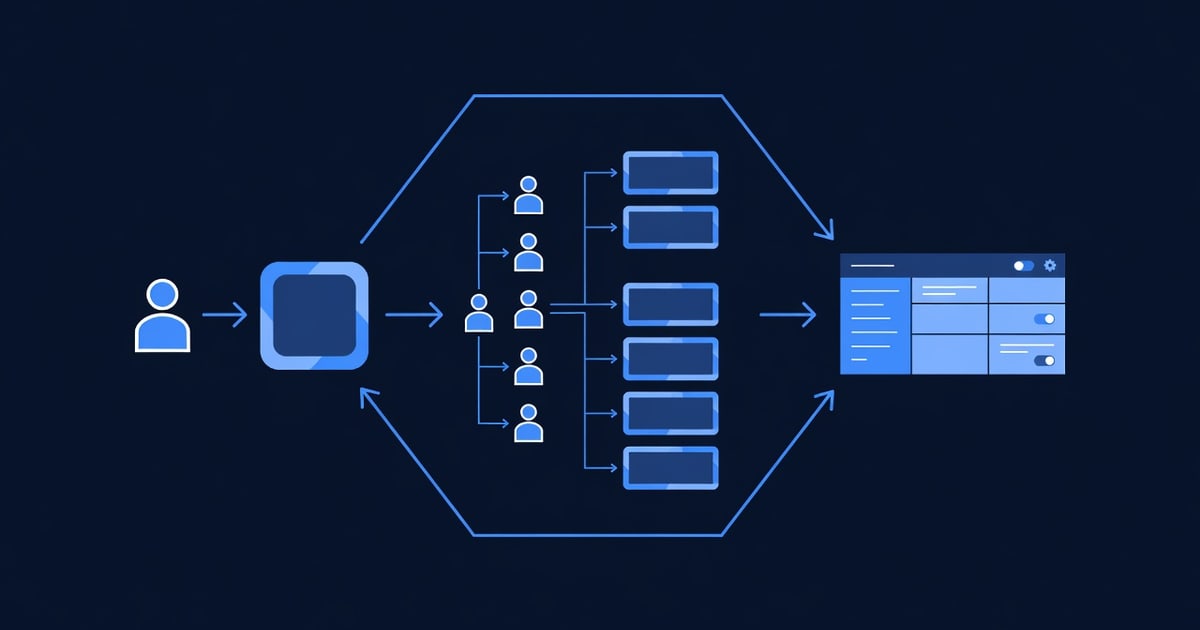
Enter sub-accounts. A sub-account is a fully separate, white-label instance of GoHighLevel that sits under your parent account. Your client logs in, sees their branding (logo, colors), accesses their data only—and has no idea it’s powered by GoHighLevel. To them, it’s a custom-built CRM you created.
Sub-accounts are how white-label agencies at scale (managing 20, 50, or 100+ client accounts) stay organized, secure, and professional. Without them, you’d need a separate GoHighLevel instance for every client (expensive and chaotic). With them, you manage everything from one parent dashboard while each client sees a fully branded experience.
This guide walks you through creating your first sub-account, configuring permissions, setting up white-label branding, and managing multiple accounts efficiently.
By the end, you’ll have a working sub-account ready for your client to log in tomorrow.
Key Takeaways
- A GoHighLevel sub-account is a separate, white-labeled CRM instance under your parent account; clients see your branding, not GoHighLevel’s, while you manage everything from the parent dashboard
- Sub-accounts are available on Pro ($199/month) and Unlimited ($497/month) plans; Starter plan does not support sub-accounts
- Creating a sub-account takes 10–15 minutes; most setup time is white-label customization (logo, colors, domain) rather than core configuration
- Permission roles (Admin, Manager, Team Member) control what each user can access; grant minimum permissions (least privilege principle) to reduce security risk
- Agencies using sub-accounts manage 50–100+ clients from one parent account, reduce client support overhead by 30–40%, and scale without hiring developers or purchasing new infrastructure
What Are Sub-Accounts & Why They Matter
A sub-account is a standalone GoHighLevel workspace that exists under your parent account. Your client logs in with their own credentials and sees a fully branded, white-labeled experience.
Key distinction: Your client’s data is isolated. They cannot see your other clients’ data, your templates, or your internal workflows. From their perspective, they’re using a custom-built CRM built just for their business.
The Client Experience
Your client logs in at https://their-company.gohighlevel.com (custom domain you set). They see:
- Their logo in the top left
- Their brand colors throughout the interface
- “Powered by [Your Agency Name]” in the footer (not “GoHighLevel”)
- All their CRM data: contacts, pipelines, automations, campaigns
They have no idea the underlying platform is GoHighLevel. It feels like a custom application.
The Agency Experience
You log into your parent account and see a dashboard showing all your sub-accounts:
Parent Account Dashboard
├─ Sub-Account: ACME Real Estate
│  ├─ Contacts: 2,450
│  ├─ Active Campaigns: 8
│  ├─ Monthly Fee: $199
│  └─ Status: Active
│
├─ Sub-Account: BuildCo Contractors
│  ├─ Contacts: 890
│  ├─ Active Campaigns: 3
│  ├─ Monthly Fee: $199
│  └─ Status: Active
│
└─ Sub-Account: FitnessPro Studios
   ├─ Contacts: 1,240
   ├─ Active Campaigns: 5
   ├─ Monthly Fee: $299 (Unlimited tier)
   └─ Status: Active
You can log into any sub-account, manage their data, create templates, run reports, and troubleshoot—all without logging out of your parent account.
Why Sub-Accounts Matter for Agencies
Problem solved 1: Client data isolation. Without sub-accounts, all your clients’ data would live in one shared CRM. A client could accidentally see another client’s leads or pipelines (security nightmare). Sub-accounts make this impossible.
Problem solved 2: Scalability without infrastructure. You don’t need to buy a new GoHighLevel account for each client. One parent account + unlimited sub-accounts = manage 100+ clients from one dashboard.
Problem solved 3: White-label professionalism. Your client sees their branding, not GoHighLevel’s. You become the platform provider in their eyes, reinforcing their trust and dependency on your agency.
Problem solved 4: Reduced support overhead. You manage client accounts from the parent dashboard. Client wants a report? You run it. Client wants a new automation? You build it. No need to give them admin access (reducing support tickets and errors).
Sub-Account Requirements & Limitations
What Plan Do You Need?
| Plan | Starter | Pro | Unlimited |
|---|---|---|---|
| Monthly Cost | $99 | $199 | $497 |
| Sub-Accounts Included | ❌ None | ✅ Unlimited | ✅ Unlimited |
| Contacts per Sub-Account | N/A | Up to 10K | Unlimited |
| Automations per Sub-Account | N/A | Up to 50 | Unlimited |
| Custom Fields | N/A | 30 | Unlimited |
| API Access | ❌ No | ✅ Yes | ✅ Yes |
Bottom line: You need at least the Pro plan ($199/month) to create sub-accounts. If you’re managing 5+ clients, upgrade to Pro or Unlimited.
Sub-Account Limits
- Unlimited sub-accounts per parent account (no hard cap)
- Storage: Each sub-account gets storage based on your plan (10K contacts on Pro, unlimited on Unlimited)
- Automations: Same limit as your parent plan applies to each sub-account
- Custom branding: Full white-label capability (domain, logo, colors, footer)
- Team members: Add unlimited team members to each sub-account with role-based permissions
What You Cannot Do
- Cannot create sub-accounts of sub-accounts. Sub-accounts are one level deep. You can’t nest them.
- Cannot transfer a sub-account to another parent account. Once created under your account, it stays there.
- Cannot downgrade a sub-account independently. All sub-accounts must be the same tier (Pro or Unlimited) as your parent account.
Permission Roles: Who Can Do What
Before you create a sub-account, understand GoHighLevel’s permission roles. Each team member gets one role, which determines what they can access.
Admin
Can do: Full access to all features, data, and settings. Can create users, change permissions, and delete accounts.
Use case: You (the agency owner). One admin per sub-account usually.
Manager
Can do: Access all data and features except billing and account deletion. Can manage team members and automations.
Use case: Your client (if you want them to have full control). Or your client success manager (if you want them to manage that account).
Team Member
Can do: Access only assigned features (CRM, campaigns, reporting) based on custom permissions.
Use case: Client’s team member who handles leads. Grant them access to Contacts and Pipelines only, nothing else.
Owner
Can do: Highest-level account access. Can delete the account itself.
Use case: Rarely used. Usually reserved for the agency account owner.
Simple rule: Grant the lowest permission level necessary. If a client only needs to view reports, don’t make them Manager. Create a custom “Reporting Only” role.
How to Create Your First Sub-Account
Step 1: Access the Sub-Account Creator
In your GoHighLevel parent account:
- Go to Settings → Accounts (or Sub-Accounts, depending on your version)
- Click + Create Sub-Account or + Add New Account
- You’re now in the sub-account creation wizard
Step 2: Enter Account Details
Fill in the required fields:
Account Name: (Example: “ACME Real Estate”)
- This is the name you see in your parent dashboard
- Not visible to the client (unless you customize it)
Account Email: (Example: “[email protected]” or “[email protected]”)
- Use a shared email (not personal)
- This is the login for the account admin
- GoHighLevel sends notifications and password resets to this email
Account Tier: (Pro or Unlimited)
- Select based on client’s needs (contact limit, automation cap)
- Charges appear on your parent account bill
Time Zone: (Select client’s timezone)
- Affects when automations run and reports generate
- Change later if needed
Click Next.
Step 3: Configure Basic Settings
Display Name: (How the client sees the account name)
- Example: “ACME Real Estate” or just “My CRM”
Account Type: (Select one)
- Agency
- Freelancer
- Small Business
- Enterprise
(This is mostly for GoHighLevel’s internal analytics; doesn’t affect functionality.)
Industry: (Optional but recommended)
- Real Estate
- Digital Marketing
- B2B SaaS
- Fitness
- Other
Click Next.
Step 4: Set Up White-Label Branding
This is where the magic happens. Your client sees this branding when they log in.
Logo: Upload your agency logo (PNG or JPG, max 2MB, recommended 200x50px)
- This appears in the top-left corner of the sub-account
- Use your agency logo, not GoHighLevel’s
Brand Color (Primary): Pick your brand’s primary color
- Example: #0066CC (blue)
- Used for buttons, highlights, and accents
Brand Color (Secondary): Pick a secondary color
- Example: #00CC66 (green)
- Used for complementary elements
Favicon: Upload a small icon (32x32px)
- Appears in the browser tab
- Usually your agency logo shrunk down
Footer Text: Customize what appears at the bottom
- Example: “Powered by [Your Agency Name] • [email protected]”
- Or: “Your success is our success. Questions? Call 1-800-XXX-XXXX”
Remove GoHighLevel Branding: ✅ Check this
- Removes all “GoHighLevel” labels from the interface
- Makes it fully white-label
Click Next.
Step 5: Set Up Custom Domain (Optional but Recommended)
Instead of logging in at accounts.gohighlevel.com, your client logs in at acme.yourdomain.com or similar.
Enable Custom Domain: ✅ Check Custom Domain: Enter your domain
- Example:
crm.youragency.comorclient-acme.youragency.com - You must own this domain (already registered)
DNS Setup (You’ll need to do this in your domain registrar):
- GoHighLevel will show you CNAME records to add to your domain’s DNS
- This typically takes 24–48 hours to propagate
- Example CNAME record:
crm.youragency.com → ghl-acme.gohighlevel.com
If you skip this: Client logs in at accounts.gohighlevel.com with their email (less branded, but still works).
Click Next.
Step 6: Set User Permissions
Decide what the account admin (your client or your team member) can access:
Select Role for Account Admin: (Recommend: Manager or Owner)
- Admin: Full access
- Manager: Full access except billing
- Owner: Same as Admin
Advanced Permissions (if available):
- ✅ CRM (Contacts, Pipelines)
- ✅ Campaigns (Email, SMS, Social)
- ✅ Forms & Automations
- ✅ Reporting & Analytics
- ❌ Billing (Usually disabled for clients)
- ❌ Account Settings (Usually disabled for clients)
Click Next.
Step 7: Review & Create
Review all your settings:
Account Name: ACME Real Estate
Account Email: [email protected]
Tier: Pro ($199/month)
Logo: [Your Agency Logo]
Brand Colors: #0066CC, #00CC66
Custom Domain: crm.youragency.com
Admin Role: Manager
Everything look good? Click Create Sub-Account.
GoHighLevel creates the account (usually takes 30–60 seconds).
Step 8: Get the Login Link
After creation, you’ll see:
✅ Sub-Account Created Successfully!

Account Details:
• Name: ACME Real Estate
• Email: [email protected]
• Login URL: https://crm.youragency.com
• Or: https://accounts.gohighlevel.com (temporary fallback)

Next Steps:
1. Set password for [email protected] (link sent to email)
2. Log in and verify branding
3. Add team members
4. Import or create contacts
Send the login link to your client:
“Hey! Your CRM account is ready. Log in at https://crm.youragency.com with: • Email: [email protected] • Password: [sent to that email]
If you don’t see the password reset email, check spam and reply here.”
Step-by-Step: Logging Into a Sub-Account from Parent
After creating a sub-account, you’ll often need to log into it (to set it up, troubleshoot, or manage data). Here’s how:
Method 1: From Parent Dashboard
- Go to Settings → Accounts (or Sub-Accounts)
- Find your sub-account in the list
- Click Login or View Account button
- You’re now logged into the sub-account as Admin (read-only view or full access, depending on your parent role)
Method 2: Direct URL
If you set a custom domain (e.g., crm.youragency.com):
- Go to
https://crm.youragency.com - Log in with the account email and password you created
- You’re in the sub-account
Method 3: Accounts.gohighlevel.com Fallback
If the custom domain isn’t working yet:
- Go to
https://accounts.gohighlevel.com - Log in with the sub-account email and password
- You’re in the sub-account
Note: You can have multiple browser tabs open—one with parent account, one with sub-account—to compare settings or copy templates between accounts.
White-Label Best Practices: Make It Look Professional

Your client is paying for a “custom CRM.” Make them believe it.
Best Practice 1: Use a Branded Domain
Don’t log them into accounts.gohighlevel.com. Get them a branded URL:
crm.youragency.com(if you manage one client)client-acme.youragency.com(if you manage multiple clients under one domain)acme-crm.com(if the client buys their own domain and points to your setup)
Cost: Custom domain registration is ~$12/year. Worth it for professionalism.
Best Practice 2: Customize the Footer
Set footer text to your agency name and support contact:
✅ Good:
Powered by Short n Sweet Digital
[email protected] | (555) 123-4567
❌ Bad:
Powered by GoHighLevel
Powered by GoHighLevel Inc.
Best Practice 3: Match Brand Colors to Client
If possible, use the client’s brand colors, not yours:
| Client | Primary Color | Secondary Color |
|---|---|---|
| ACME Real Estate | #D4A574 (warm brown) | #FFFFFF (white) |
| BuildCo Contractors | #FF6B35 (orange) | #004E89 (navy) |
| FitnessPro Studios | #FF1654 (pink) | #1A1A2E (dark) |
This makes the client feel the platform was built for them specifically.
Best Practice 4: Create a Custom Welcome Email
When you send the login link, add context and encouragement:
Hi [Client Name],
Your CRM is ready! I’ve set it up with your branding (logo, colors, domain) so it feels like a custom-built platform just for you.
Log in here: https://crm.youragency.com Email: [their email] Password: [temporary password sent separately]
First login checklist:
- Log in and reset your password (for security)
- Explore the Contacts section (where all your leads will live)
- Check out the Pipelines (we’ll customize these next week)
- Schedule a 15-min onboarding call with me tomorrow
See you soon! — [Your Name], [Your Agency]
This sets expectations and shows you’re invested in their success.
Best Practice 5: Create a “Help” Resource
Add a help link or button to your sub-account footer:
Footer Text: "Powered by Short n Sweet Digital | Need help? Check our guides or email [email protected]"Link them to:
- A private Loom video walkthrough of their CRM
- A Notion doc with FAQ
- Your support email or Slack channel
- A Calendly link to schedule a call
Common Sub-Account Mistakes (And How to Avoid Them)
Mistake 1: Giving Every Client Admin Access
Problem: You create a sub-account with Admin role for the client, thinking “they own it.” Client accidentally deletes automations, changes payment methods, or exports all data. You lose control.
How to avoid: Use Manager or custom roles instead. You stay as Owner/Admin. Client gets Manager (full feature access, no billing/deletion). If client is a team member, use Team Member role with custom permissions.
Mistake 2: Not Customizing the Domain
Problem: You leave the default accounts.gohighlevel.com login URL. Client logs in, sees GoHighLevel branding in the top corner. They think, “Wait, this is GoHighLevel? Why am I paying the agency $200/month?”
How to avoid: Set up a custom domain during creation. It takes 10 minutes and makes a huge difference in perceived value.
Mistake 3: Forgetting to Remove GoHighLevel Branding
Problem: Footer still says “Powered by GoHighLevel,” logo is the default GHL logo, colors are default blue. Not white-label.
How to avoid: During setup, check Remove GoHighLevel Branding and upload your agency logo and colors.
Mistake 4: Creating Sub-Accounts for Internal Team Members
Problem: You create a sub-account for your copywriter, designer, or developer, thinking they’ll have their own workspace. Now you’re managing 5 sub-accounts instead of 1 (billing, confusion, waste).
How to avoid: Use team member invites within the account. Don’t create sub-accounts for internal staff. Sub-accounts are for clients only. Internal staff get added to the parent account with appropriate roles.
Mistake 5: Not Setting a Billing Contact
Problem: You create a sub-account and forget to add a backup email for billing/password resets. If something breaks and the account email is inactive, you can’t reset it.
How to avoid: When creating the sub-account email, use a shared inbox or your agency email. Add yourself as a backup contact in account settings.
Mistake 6: Mixing Client Data Across Sub-Accounts
Problem: You create sub-accounts but realize halfway through that you need to move contacts from Sub-Account A to Sub-Account B. GoHighLevel doesn’t allow cross-account transfers easily.
How to avoid: Plan your sub-account structure upfront. One sub-account per client, or one sub-account per business line (if a client has multiple divisions). Don’t reorganize later.
Adding Team Members to a Sub-Account
After you create the sub-account, add team members (your client’s staff, your agency staff, or both).
Step 1: Go to Account Settings
In the sub-account:
- Click Settings → Team or Users
- Click + Add Team Member or + Invite User
Step 2: Enter User Details
Email: The team member’s email First Name: First name Last Name: Last name Role: (Admin, Manager, Team Member)
Step 3: Set Permissions (If Using Team Member Role)
If you selected Team Member role, choose what they can access:
✅ Can Access:
- ☑ Contacts (view, create, edit)
- ☑ Pipelines (view, move deals)
- ☑ Campaigns (view, send emails)
- ☑ Reporting (view reports)
❌ Cannot Access:
- ☑ Billing
- ☑ Account Settings
- ☑ User Management
- ☑ API Keys
Click Send Invite.
GoHighLevel sends an invitation email. The user clicks the link, sets a password, and logs in.
Step 4: Manage Permissions Later
Need to change a user’s role? Go to Settings → Team, find the user, click Edit, and update their role.
Need to remove a user? Click Remove next to their name. They lose access immediately.
Advanced: Migrating Contacts to a Sub-Account
If you’re moving an existing client to GoHighLevel and they have contact data elsewhere, you’ll import it into their sub-account.
Where Does Data Come From?
- CSV export from old CRM (Pipedrive, HubSpot, Salesforce, etc.)
- Spreadsheet (Excel, Google Sheets)
- Manual entry (if you only have a few contacts)
How to Import
In the sub-account:
- Go to Contacts → Import
- Click Upload CSV
- Map columns (match CSV columns to GoHighLevel fields)
- Review preview
- Click Import
GoHighLevel matches and deduplicates contacts automatically.
Timing: Allow 5–30 minutes depending on contact count (10 contacts = 5 min, 5,000 contacts = 30 min).
Example: Importing Real Estate Leads
Your CSV has columns: First Name, Last Name, Email, Phone, Property Interest GoHighLevel fields: First Name, Last Name, Email, Phone, Custom Field (Property Interest)
Mapping:
CSV Column → GoHighLevel Field
─────────────────────────────────
First Name → First Name
Last Name → Last Name
Email → Email
Phone → Phone Number
Property Interest → Custom Field: Property Interest
Click Map and GoHighLevel handles the rest.
Advanced: Managing Multiple Sub-Accounts from Parent Dashboard
If you’re managing 10+ sub-accounts, the parent dashboard becomes your command center.
Parent Dashboard Features
Settings → Accounts (or Sub-Accounts):
Sub-Accounts Overview
┌────────────────────────────────────────────────────────┐
│ Account Name      │ Status │ Created  │ Contacts │ Action   │
├────────────────────────────────────────────────────────┤
│ ACME Real Estate  │ Active │ 6/10/26  │ 2,450    │ Login    │
│ BuildCo Contrs.   │ Active │ 5/20/26  │ 890      │ Login    │
│ FitnessPro        │ Paused │ 4/15/26  │ 1,240    │ Resume   │
│ DataFlow Inc.     │ Active │ 6/01/26  │ 156      │ Login    │
└────────────────────────────────────────────────────────┘
Quick actions:
- Login: Jump into any sub-account
- Pause: Temporarily deactivate (client isn’t paying, will reactivate later)
- Resume: Reactivate a paused account
- Delete: Remove account permanently (⚠️ irreversible)
- View Billing: See charges per sub-account
Reporting Across Sub-Accounts
Some GoHighLevel plans let you see aggregate reports:
- Total contacts across all sub-accounts
- Total campaigns sent
- Total revenue tracked (sum of all deal values)
- Team member activity
Use this for executive reporting: “My agency is managing 50,000 contacts across 12 clients. We’ve sent 500 campaigns this quarter.”
Pricing: How Sub-Account Billing Works

Billing Model
Your parent account: Charged for your plan (Pro $199 or Unlimited $497 per month)
Each sub-account: Charged for its tier (Pro or Unlimited)
Total monthly cost:
Parent Account (Pro): $199
Sub-Account 1 (Pro): $199
Sub-Account 2 (Pro): $199
Sub-Account 3 (Unlimited): $497
─────────────────────────────
Total: $1,094/month
Charging Clients
Option 1: Mark-Up Model (Most common for agencies)
- You buy each sub-account at Pro tier ($199)
- You charge client $299–$399/month
- You keep the difference ($100–$200 per client per month)
- At 10 clients: $1,000–$2,000 profit per month
Option 2: Pass-Through Model
- You bill client exactly what GoHighLevel charges ($199 for Pro)
- You charge separately for setup, customization, support
- Example: $199 + $500 setup fee + $200/month support = $700 first month, $399/month ongoing
Option 3: Bundled Model
- You include the CRM in a bundled service (e.g., “Done-for-You Marketing” = $1,500/month includes CRM + email campaigns + reporting)
- Client doesn’t see the GoHighLevel line item
- You manage margin internally
Most white-label agencies use Option 1 (mark-up) or Option 3 (bundled).
FAQ: GoHighLevel Sub-Accounts
Q: Can a client access my parent account or other clients’ data?
A: No. Sub-accounts are completely isolated. Client’s data lives in their sub-account only. They cannot see your parent account or other clients’ sub-accounts, even if they guess the URL.
Q: How many sub-accounts can I create?
A: Unlimited. GoHighLevel doesn’t cap sub-account count. You can manage 5, 50, or 500 sub-accounts under one parent account.
Q: Can I change a client’s sub-account tier later (Pro to Unlimited)?
A: Yes. Go to Settings → Accounts, find the sub-account, and click Upgrade Tier. Billing adjusts pro-rata (if you upgrade mid-month, you pay the difference).
Q: What if a client wants to move their sub-account to their own GoHighLevel account?
A: You can export their data (contacts, campaigns, automations) as CSV/JSON and they can import it into their own account. But GoHighLevel doesn’t allow direct account transfer. Plan accordingly in your client contract.
Q: Can I white-label the login page itself (the form where they enter email/password)?
A: Yes, with a custom domain. GoHighLevel replaces the default “GoHighLevel” branding with your domain name and logo. The form itself stays the same GoHighLevel design, but it feels like your platform.
Q: Can I automate sub-account creation (e.g., when a client signs up, auto-create their sub-account)?
A: Yes, via GoHighLevel API. You can build a Zapier workflow or custom script that creates sub-accounts on demand. Advanced setup (requires API knowledge).
Q: How do I handle support for multiple clients if they all have sub-accounts?
A: Create a support process:
- Clients email your support address (not GoHighLevel support)
- You log into their sub-account and troubleshoot
- If it’s a GoHighLevel bug, you contact GHL support on their behalf
- Client never contacts GoHighLevel directly (you’re the middleman)
This keeps your clients dependent on you (good for retention and recurring revenue).
Q: Can I resell sub-accounts at different price points based on features?
A: Yes. You can create multiple sub-account tiers:
- Starter: Pro tier ($199/month from GHL) → charge client $299/month
- Growth: Pro tier with custom integrations ($199/month + API setup) → charge client $499/month
- Enterprise: Unlimited tier ($497/month from GHL) → charge client $799/month
Your margin scales with the service level.
Next Steps: Deploy Your First Sub-Account
- Ensure you’re on Pro or Unlimited plan (Starter doesn’t support sub-accounts)
- Log into your GoHighLevel parent account
- Go to Settings → Accounts → + Create Sub-Account
- Follow Steps 1–7 from “How to Create Your First Sub-Account” above
- Customize branding (logo, colors, domain)
- Send login link to client
- Schedule onboarding call to walk them through the platform
- Import their contacts (if migrating from another CRM)
- Create a pipeline for their sales process
- Set up 1–2 automations (welcome email, lead assignment, follow-up)
Internal Linking & Related Resources
- [INTERNAL-LINK: GoHighLevel Pipelines & Automation → Build sales funnels and automate lead routing in sub-accounts]
- [INTERNAL-LINK: GoHighLevel White-Label Setup → Full guide to white-label agencies and sub-account branding]
- [INTERNAL-LINK: GoHighLevel Pricing Plans → Compare Pro and Unlimited tiers for sub-account use]
External Resources & Support
For official GoHighLevel sub-account documentation:
- GoHighLevel Knowledge Base: https://help.gohighlevel.com/sub-accounts (official help docs)
- GoHighLevel API Docs: https://developers.gohighlevel.com/docs (for automation and custom integrations)
Affiliate Disclosure
Short n Sweet Digital is a GoHighLevel white-label partner. We earn commissions on qualified signups through our affiliate link at https://www.gohighlevel.com/?fp_ref=shortnsweet53 at no cost to you. All pricing and features referenced in this article are current as of June 2026 and subject to change. Check GoHighLevel’s official site for the latest details.
━━━━━━━━━━━━━━━━━━━━━━━━━━━━━━━━━━━━━━━━━━━━━━━━━━━━━━━━━━ Built by agricidaniel - Join the AI Marketing